


Page 37 - Adobe Photoshop and Dreamviewer 2021
P. 37
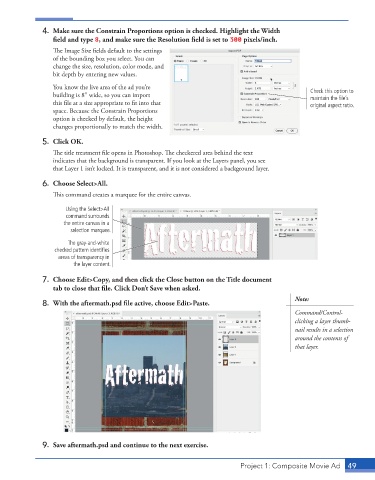
4.  Make sure the Constrain Proportions option is checked. Highlight the Width
                 field and type 8, and make sure the Resolution field is set to 300 pixels/inch.
                 The Image Size fields default to the settings
                 of the bounding box you select. You can
                 change the size, resolution, color mode, and
                 bit depth by entering new values.

                 You know the live area of the ad you’re                                        Check this option to
                 building is 8″ wide, so you can import                                         maintain the file’s
                 this file at a size appropriate to fit into that                               original aspect ratio.
                 space. Because the Constrain Proportions
                 option is checked by default, the height
                 changes proportionally to match the width.

              5.  Click OK.
                 The title treatment file opens in Photoshop. The checkered area behind the text
                 indicates that the background is transparent. If you look at the Layers panel, you see
                 that Layer 1 isn’t locked. It is transparent, and it is not considered a background layer.

              6.  Choose Select>All.
                 This command creates a marquee for the entire canvas.

                     Using the Select>All
                     command surrounds
                    the entire canvas in a
                       selection marquee.

                      The gray-and-white
                  checked pattern identifies
                   areas of transparency in
                       the layer content.
              7.  Choose Edit>Copy, and then click the Close button on the Title document
                 tab to close that file. Click Don’t Save when asked.
                                                                                           Note:
              8.  With the aftermath.psd file active, choose Edit>Paste.
                                                                                           Command/Control-
                                                                                           clicking a layer thumb-
                                                                                           nail results in a selection
                                                                                           around the contents of
                                                                                           that layer.


              9.  Save aftermath.psd and continue to the next exercise.


                                                                          Project 1: Composite Movie Ad    49

