


Page 69 - CC 2019 GD Look Inside
P. 69
Edit Individual Grouped Elements

                 Th  e client has decided that the icons should be white artwork on green backgrounds,
                 so the fi nal step in this exercise requires changing the colors of both the background
                 shapes and the icon artwork. Th  is is a fairly easy process, but because each of the
                 icons are grouped, it will require a few extra steps.

                  1. With icons.ai open, change your view percentage so you can see all the
                      artwork in the fi le.
                  2.  In the Layers panel, unlock all layers and sublayers in the fi le.

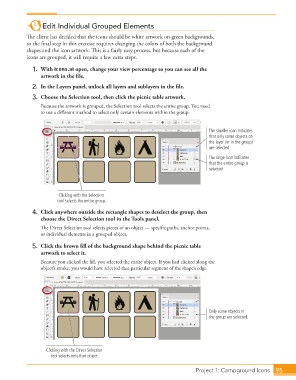
                  3.  Choose the  Selection tool, then click the picnic table artwork.
                      Because the artwork is grouped, the Selection tool selects the entire  group. You need
                      to use a diff erent method to select only certain elements within the  group.


                                                                                      The smaller icon indicates
                                                                                      that only some objects on
                                                                                      the layer (or in the group)
                                                                                      are selected.
                                                                                      The large icon indicates
                                                                                      that the entire group is
                                                                                      selected.


                             Clicking with the Selection
                            tool selects the entire group.
                  4.  Click anywhere outside the rectangle shapes to deselect the group, then
                      choose the  Direct Selection tool in the Tools panel.
                      Th  e Direct Selection tool selects pieces of an object — specifi c paths, anchor points,
                      or individual elements in a grouped object.

                  5.  Click the brown fi ll of the background shape behind the picnic table
                      artwork to select it.
                      Because you clicked the fi ll, you selected the entire object. If you had clicked along the
                      object’s stroke, you would have selected that particular segment of the shape’s edge.


                                                                                      Only some objects in
                                                                                      the group are selected.


                        Clicking with the Direct Selection
                          tool selects only that object.

                                                                                   Project 1: Campground Icons  95

