


Page 70 - CC 2019 GD Look Inside
P. 70
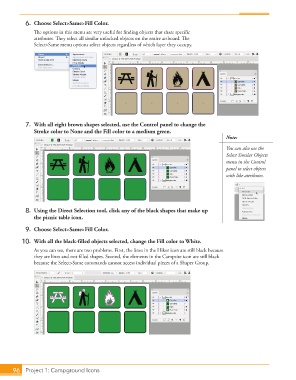
6.  Choose Select>Same>Fill Color.
                   The options in this menu are very useful for finding objects that share specific
                   attributes. They select all similar unlocked objects on the entire artboard. The
                   Select>Same menu options select objects regardless of which layer they occupy.


                7.  With all eight brown shapes selected, use the Control panel to change the
                   Stroke color to None and the Fill color to a medium green.
                                                                                             Note:

                                                                                             You can also use the
                                                                                             Select Similar Objects
                                                                                             menu in the Control
                                                                                             panel to select objects
                                                                                             with like attributes.


                8.  Using the Direct Selection tool, click any of the black shapes that make up
                   the picnic table icon.

                9.  Choose Select>Same>Fill Color.

               10.  With all the black-filled objects selected, change the Fill color to White.
                   As you can see, there are two problems. First, the lines in the Hiker icon are still black because
                   they are lines and not filled shapes. Second, the elements in the Campsite icon are still black
                   because the Select>Same commands cannot access individual pieces of a Shaper Group.


           96   Project 1: Campground Icons

