


Page 52 - CC 2019 GD Look Inside
P. 52
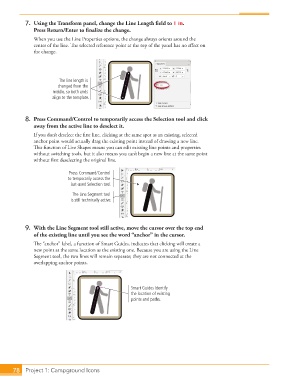
7.  Using the Transform panel, change the Line Length fi eld to 1 in.
                   Press Return/Enter to fi nalize the change.
                   When you use the  Line Properties options, the change always orients around the
                   center of the line. Th  e selected reference point at the top of the panel has no eff ect on
                   the change.


                             The line length is
                             changed from the
                           middle, so both ends
                          align to the template.


               8.  Press Command/Control to temporarily access the  Selection tool and click
                   away from the active line to deselect it.
                   If you don’t deselect the fi rst line, clicking at the same spot as an existing, selected
                   anchor point would actually drag the existing point instead of drawing a new line.
                   Th  is function of  Live Shapes means you can edit existing line points and properties
                   without switching tools, but it also means you can’t begin a new line at the same point
                   without fi rst deselecting the original line.

                                 Press Command/Control
                                to temporarily access the
                                 last-used Selection tool.
                                  The Line Segment tool
                                  is still technically active.


               9.  With the Line Segment tool still active, move the cursor over the top end
                   of the existing line until you see the word “anchor” in the cursor.
                   Th  e “anchor” label, a function of Smart Guides, indicates that clicking will create a
                   new point at the same location as the existing one. Because you are using the Line
                   Segment tool, the two lines will remain separate; they are not  connected at the
                   overlapping anchor points.


                                                         Smart Guides identify
                                                         the location of existing
                                                         points and paths.


           78     Project 1: Campground Icons

