


Page 42 - CC 2019 GD Look Inside
P. 42
STAGE 2 / Drawing with Basic Shapes


              A number of tools and utilities can be used to create complex Illustrator artwork. Creating the
              icons in this project gives you an opportunity to experiment with some of these options. As you
              complete the other projects in this book, you will dig deeper into complex drawing techniques.


                    Numerically Transform Drawing Objects

              Basic shapes, such as rectangles, can be used as the basis for a wide variety of drawings.
              In the next two exercises, you will use basic rectangles to create the picnic table art.

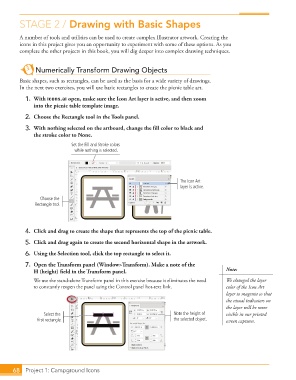
               1. With icons.ai open, make sure the Icon Art layer is active, and then zoom
                   into the picnic table template image.
               2.  Choose the Rectangle tool in the Tools panel.

               3.  With nothing selected on the artboard, change the fi ll color to black and
                   the stroke color to None.
                                  Set the Fill and Stroke colors
                                   while nothing is selected.


                                                                           The Icon Art
                                                                           layer is active.

                      Choose the
                    Rectangle tool.


               4.  Click and drag to create the shape that represents the top of the picnic table.
               5.  Click and drag again to create the second horizontal shape in the artwork.

               6.  Using the Selection tool, click the top rectangle to select it.

               7.  Open the  Transform panel (Window>Transform). Make a note of the
                   H (height) fi eld in the Transform panel.                                 Note:

                   We use the stand-alone Transform panel in this exercise because it eliminates the need   We changed the layer
                   to constantly reopen the panel using the Control panel hot-text link.     color of the Icon Art
                                                                                             layer to magenta so that
                                                                                             the visual indicators on
                                                                                             the layer will be more
                       Select the                                        Note the height of   visible in our printed
                     first rectangle.                                    the selected object.  screen captures.


           68     Project 1: Campground Icons

