


Page 47 - CC 2019 GD Look Inside
P. 47
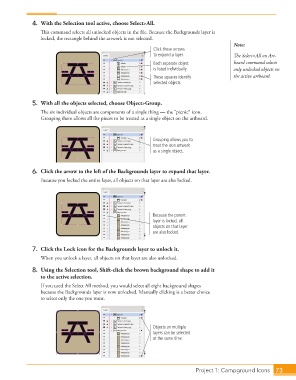
4.  With the Selection tool active, choose Select>All.
                      This command selects all unlocked objects in the file. Because the Backgrounds layer is
                      locked, the rectangle behind the artwork is not selected.
                                                                                                Note:
                                                                 Click these arrows
                                                                 to expand a layer.             The Select>All on Art-
                                                                 Each separate object           board command selects
                                                                 is listed individually.        only unlocked objects on
                                                                 These squares identify         the active artboard.
                                                                 selected objects.


                   5.  With all the objects selected, choose Object>Group.
                      The six individual objects are components of a single thing — the “picnic” icon.
                      Grouping them allows all the pieces to be treated as a single object on the artboard.


                                                                 Grouping allows you to
                                                                 treat the icon artwork
                                                                 as a single object.


                   6.  Click the arrow to the left of the Backgrounds layer to expand that layer.

                      Because you locked the entire layer, all objects on that layer are also locked.


                                                                 Because the parent
                                                                 layer is locked, all
                                                                 objects on that layer
                                                                 are also locked.


                   7.  Click the Lock icon for the Backgrounds layer to unlock it.
                      When you unlock a layer, all objects on that layer are also unlocked.

                   8.  Using the Selection tool, Shift-click the brown background shape to add it
                      to the active selection.
                      If you used the Select All method, you would select all eight background shapes
                      because the Backgrounds layer is now unlocked. Manually clicking is a better choice
                      to select only the one you want.


                                                                 Objects on multiple
                                                                 layers can be selected
                                                                 at the same time.


                                                                                 Project 1: Campground Icons    73

