


Page 46 - CC 2019 GD Look Inside
P. 46
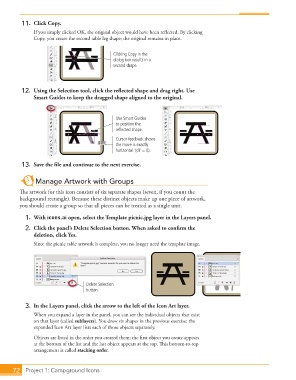
11.  Click Copy.
                   If you simply clicked OK, the original object would have been refl ected. By clicking
                   Copy, you create the second table leg shape; the original remains in place.


                                                  Clicking Copy in the
                                                  dialog box results in a
                                                  second shape.


               12.  Using the  Selection tool, click the refl ected shape and drag right. Use
                     Smart Guides to keep the dragged shape aligned to the original.


                                                   Use Smart Guides
                                                   to position the
                                                   reflected shape.
                                                   Cursor feedback shows
                                                   the move is exactly
                                                   horizontal  (dY = 0).


               13.  Save the fi le and continue to the next exercise.


                    Manage Artwork with Groups
              Th  e artwork for this icon consists of six separate shapes (seven, if you count the
              background rectangle).  Because these distinct  objects make up one piece of artwork,
              you should create a group so that all pieces can be treated as a single unit.
               1. With icons.ai open, select the Template picnic.jpg layer in the  Layers panel.

               2.  Click the panel’s Delete Selection button. When asked to confi rm the
                   deletion, click Yes.
                   Since the picnic table artwork is complete, you no longer need the template image.


                                       Delete Selection
                                       button


               3.  In the Layers panel, click the arrow to the left of the Icon Art layer.
                   When you expand a layer in the panel, you can see the individual objects that exist
                   on that layer (called  sublayers). You drew six shapes in the previous exercise; the
                   expanded Icon Art layer lists each of those objects separately.
                   Objects are listed in the order you created them; the fi rst object you create appears
                   at the bottom of the list and the last object appears at the top. Th  is bottom-to-top
                   arrangement is called  stacking order.


           72     Project 1: Campground Icons

