


Page 43 - CC 2019 GD Look Inside
P. 43
8.  Click to select the second shape (from Step 5).

                  9.  If necessary, click the Constrain Width and Height Proportions button in
                      the Transform panel to turn off  that option.
                                                                               The Constrain option
                      When this button is active, changing the height or width   is turned on.
                      fi eld makes a proportional change to the other dimension.
                      When it is inactive, you can change one dimension of a   The Constrain option
                      shape without aff ecting the other dimension.            is turned off.

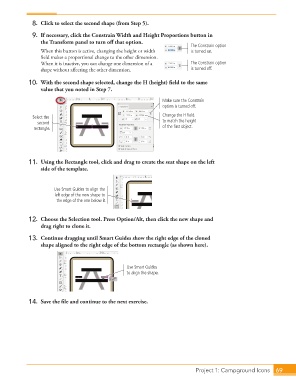
                  10.  With the second shape selected, change the H (height) fi eld to the same
                      value that you noted in Step 7.

                                                                     Make sure the Constrain
                                                                     option is turned off.

                   Select the                                        Change the H field
                     second                                          to match the height
                   rectangle.                                        of the first object.


                  11.  Using the Rectangle tool, click and drag to create the seat shape on the left
                      side of the template.


                           Use Smart Guides to align the
                           left edge of the new shape to
                            the edge of the one below it.


                  12.  Choose the  Selection tool. Press Option/Alt, then click the new shape and
                      drag right to  clone it.

                  13.  Continue dragging until Smart Guides show the right edge of the cloned
                      shape aligned to the right edge of the bottom rectangle (as shown here).


                                                       Use Smart Guides
                                                       to align the shape.


                  14.  Save the fi le and continue to the next exercise.


                                                                                   Project 1: Campground Icons  69

