


Page 44 - CC 2019 GD Look Inside
P. 44
Shear and Reflect Drawing Objects

              Illustrator includes four transformation options — Rotate, Reflect, Scale, and Shear.
              Each of these transformations can be applied either by hand, using the related tool in
              the Tools panel; or numerically, using either the fields in the Transform panel or the
              appropriate dialog box from the Object>Transform menu. In this exercise, you will
              use these methods to finish the picnic table artwork.

                1.  With icons.ai open, choose the Rectangle tool in the Tools panel.
                2.  Draw a vertical rectangle beginning at the bottom of the artwork and ending
                   at the bottom edge of the top horizontal shape (as shown after Step 3).
                   Illustrator recognizes certain basic shapes, including rectangles, ellipses, and lines.
                   When one of these shapes — called Live Shapes — is selected, the lower half of the
                   Transform panel includes properties specific to the type of shape. For a rectangle, you
                   can change the height, width, rotation angle, and corner radius for each corner.

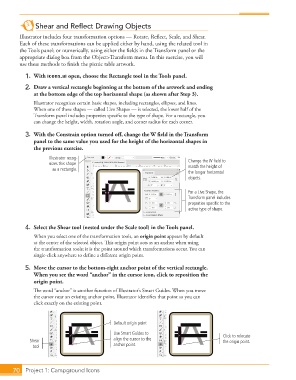
                3.  With the Constrain option turned off, change the W field in the Transform
                   panel to the same value you used for the height of the horizontal shapes in
                   the previous exercise.
                         Illustrator recog-                                   Change the W field to
                         nizes this shape                                     match the height of
                          as a rectangle.
                                                                              the longer horizontal
                                                                              objects.

                                                                              For a Live Shape, the
                                                                              Transform panel includes
                                                                              properties specific to the
                                                                              active type of shape.


                4.  Select the Shear tool (nested under the Scale tool) in the Tools panel.
                   When you select one of the transformation tools, an origin point appears by default
                   at the center of the selected object. This origin point acts as an anchor when using
                   the transformation tools; it is the point around which transformations occur. You can
                   single-click anywhere to define a different origin point.
                5.  Move the cursor to the bottom-right anchor point of the vertical rectangle.
                   When you see the word “anchor” in the cursor icon, click to reposition the
                   origin point.
                   The word “anchor” is another function of Illustrator’s Smart Guides. When you move
                   the cursor near an existing anchor point, Illustrator identifies that point so you can
                   click exactly on the existing point.


                                                  Default origin point
                                                  Use Smart Guides to                       Click to relocate
                  Shear                           align the cursor to the                   the origin point.
                   tool                           anchor point.


           70   Project 1: Campground Icons

