


Page 39 - CC 2019 GD Look Inside
P. 39
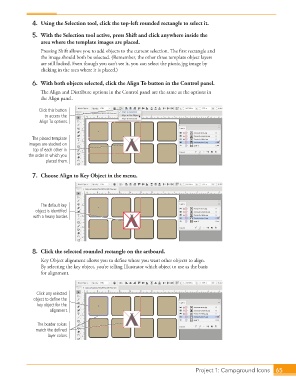
4.  Using the Selection tool, click the top-left rounded rectangle to select it.

                   5.  With the Selection tool active, press Shift and click anywhere inside the
                      area where the template images are placed.
                      Pressing Shift allows you to add objects to the current selection. The first rectangle and
                      the image should both be selected. (Remember, the other three template object layers
                      are still locked. Even though you can’t see it, you can select the picnic.jpg image by
                      clicking in the area where it is placed.)

                   6.  With both objects selected, click the Align To button in the Control panel.
                      The Align and Distribute options in the Control panel are the same as the options in
                      the Align panel.

                     Click this button
                       to access the
                     Align To options.


                   The placed template
                 images are stacked on
                   top of each other in
                 the order in which you
                        placed them.

                   7.  Choose Align to Key Object in the menu.


                      The default key
                    object is identified
                   with a heavy border.


                   8.  Click the selected rounded rectangle on the artboard.

                      Key Object alignment allows you to define where you want other objects to align.
                      By selecting the key object, you’re telling Illustrator which object to use as the basis
                      for alignment.


                    Click any selected
                   object to define the
                     key object for the
                         alignment.

                     The border colors
                    match the defined
                         layer colors.


                                                                                 Project 1: Campground Icons    65

