


Page 41 - CC 2019 GD Look Inside
P. 41
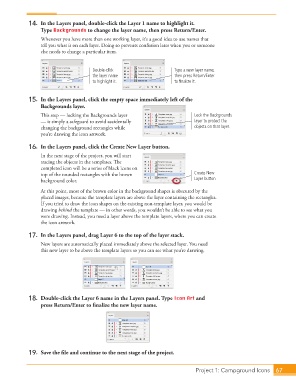
14.  In the Layers panel, double-click the Layer 1 name to highlight it.
                      Type Backgrounds to change the layer name, then press Return/Enter.
                      Whenever you have more than one working layer, it’s a good idea to use names that
                      tell you what is on each layer. Doing so prevents confusion later when you or someone
                      else needs to change a particular item.


                                          Double-click                   Type a new layer name,
                                          the layer name                 then press Return/Enter
                                          to highlight it.               to finalize it.


                  15.  In the Layers panel, click the empty space immediately left of the
                      Backgrounds layer.
                      Th  is step — locking the Backgrounds layer                Lock the Backgrounds
                      — is simply a safeguard to avoid accidentally              layer to protect the
                      changing the background rectangles while                   objects on that layer.
                      you’re drawing the icon artwork.

                  16.  In the Layers panel, click the Create  New Layer button.
                      In the next stage of the project, you will start
                      tracing the objects in the templates. Th  e
                      completed icon will be a series of black icons on
                      top of the rounded rectangles with the brown               Create New
                      background color.                                          Layer button
                      At this point, most of the brown color in the background shapes is obscured by the
                      placed images, because the template layers are above the layer containing the rectangles.
                      If you tried to draw the icon shapes on the existing non-template layer, you would be
                      drawing behind the template — in other words, you wouldn’t be able to see what you
                      were drawing. Instead, you need a layer above the template layers, where you can create
                      the icon artwork.

                  17.  In the Layers panel, drag Layer 6 to the top of the layer stack.
                      New layers are automatically placed immediately above the selected layer. You need
                      this new layer to be above the template layers so you can see what you’re drawing.


                  18.  Double-click the Layer 6 name in the Layers panel. Type Icon Art and
                      press Return/Enter to fi nalize the new layer name.


                  19.  Save the fi le and continue to the next stage of the project.


                                                                                   Project 1: Campground Icons  67

