


Page 38 - CC 2019 GD Look Inside
P. 38
Manage Multiple Layers

              When you create artwork in Illustrator, you almost always end up with more than
              one object on the artboard. In many cases, a completed fi le has dozens or hundreds
              of objects, arranged in specifi c order on top of one another. As fi les become more and
              more complex, it can be diffi  cult to fi nd and work with exactly the pieces you need.
              Illustrator  layers are one of the most powerful tools available for solving this problem.

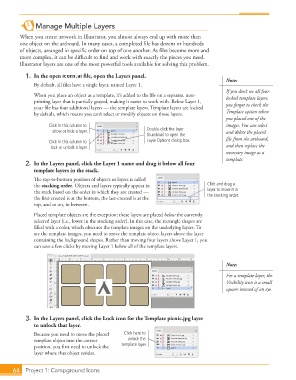
               1.  In the open icons.ai fi le, open the  Layers panel.
                                                                                             Note:
                   By default, all fi les have a single layer, named Layer 1.
                                                                                             If you don’t see all four
                   When you place an object as a template, it’s added to the fi le on a separate, non-  locked template layers,
                   printing layer that is partially grayed, making it easier to work with. Below Layer 1,
                   your fi le has four additional layers — the  template layers. Template layers are locked   you forgot to check the
                   by default, which means you can’t select or modify objects on those layers.  Template option when
                                                                                             you placed one of the
                         Click in this column to                                             images. You can select
                          show or hide a layer.                Double-click the layer        and delete the placed
                                                               thumbnail to open the
                         Click in this column to               Layer Options dialog box.     fi le from the artboard,
                          lock or unlock a layer.                                            and then replace the
                                                                                             necessary image as a
                                                                                             template.
               2.  In the Layers panel, click the Layer 1 name and drag it below all four
                   template layers in the stack.
                   Th  e top-to-bottom position of objects or layers is called
                   the  stacking order. Objects and layers typically appear in        Click and drag a
                   the stack based on the order in which they are created —           layer to move it in
                   the fi rst-created is at the bottom, the last-created is at the    the stacking order.
                   top, and so on, in between.

                   Placed template objects are the exception; these layers are placed below the currently
                   selected layer (i.e., lower in the stacking order). In this case, the rectangle shapes are
                   fi lled with a color, which obscures the template images on the underlying layers. To
                   see the template images, you need to move the template object layers above the layer
                   containing the background shapes. Rather than moving four layers above Layer 1, you
                   can save a few clicks by moving Layer 1 below all of the template layers.


                                                                                             Note:
                                                                                             For a template layer, the
                                                                                             Visibility icon is a small
                                                                                             square instead of an eye.


               3.  In the Layers panel, click the Lock icon for the Template picnic.jpg layer
                   to unlock that layer.
                   Because you need to move the placed   Click here to
                     template object into the correct   unlock the
                   position, you fi rst need to unlock the   template layer.
                   layer where that object resides.


           64     Project 1: Campground Icons

