


Page 36 - CC 2019 GD Look Inside
P. 36
Import Template Images

              Many Illustrator projects require you to start with something that has already been
              captured — a sketch, for example, or low-resolution image (which is the case in this
              project). In this exercise you will place fi les to use as templates for your new artwork.

               1. With icons.ai open, choose File>Place. Navigate to your WIP>Camping
                   folder and click picnic.jpg to select that fi le.

               2.  Macintosh users: If you don’t see a series of check boxes across the bottom
                   of the dialog box, click the Options button.
                   Th  e dialog box button remembers the last-used state, so the actual options might
                   already be visible. We do not repeat the instruction to click the Options button
                   whenever you place a fi le throughout the projects in this book.

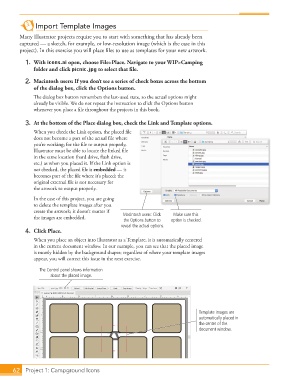
               3.  At the bottom of the  Place dialog box, check the Link and Template options.
                   When you check the Link option, the placed fi le
                   does not become a part of the actual fi le where
                   you’re working; for the fi le to output properly,
                   Illustrator must be able to locate the linked fi le
                   in the same location (hard drive, fl ash drive,
                   etc.) as when you placed it. If the  Link option is
                   not checked, the placed fi le is  embedded — it
                   becomes part of the fi le where it’s placed; the
                   original external fi le is not necessary for
                   the artwork to output properly.
                   In the case of this project, you are going
                   to delete the template images after you
                   create the artwork; it doesn’t matter if
                   the images are embedded.           Macintosh users: Click   Make sure this
                                                      the Options button to   option is checked.
                                                     reveal the actual options.
               4.  Click Place.
                   When you place an object into Illustrator as a  Template, it is automatically centered
                   in the current document window. In our example, you can see that the placed image
                   is mostly hidden by the background shapes; regardless of where your template images
                   appear, you will correct this issue in the next exercise.

                      The Control panel shows information
                          about the placed image.


                                                                                   Template images are
                                                                                   automatically placed in
                                                                                   the center of the
                                                                                   document window.


           62     Project 1: Campground Icons

