


Page 28 - CC 2019 GD Look Inside
P. 28
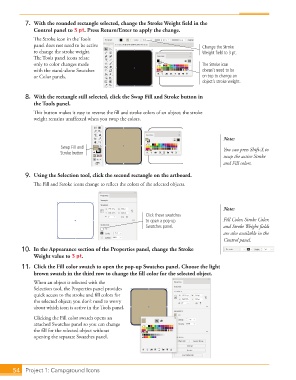
7.  With the rounded rectangle selected, change the Stroke Weight field in the
                   Control panel to 3 pt. Press Return/Enter to apply the change.
                   The Stroke icon in the Tools
                   panel does not need to be active                                 Change the Stroke
                   to change the stroke weight.                                     Weight field to 3 pt.
                   The Tools panel icons relate
                   only to color changes made                                       The Stroke icon
                   with the stand-alone Swatches                                    doesn’t need to be
                   or Color panels.                                                 on top to change an
                                                                                    object’s stroke weight.


                8.  With the rectangle still selected, click the Swap Fill and Stroke button in
                   the Tools panel.
                   This button makes it easy to reverse the fill and stroke colors of an object; the stroke
                   weight remains unaffected when you swap the colors.


                                                                                            Note:
                              Swap Fill and                                                 You can press Shift-X to
                              Stroke button
                                                                                            swap the active Stroke
                                                                                            and Fill colors.
                9.  Using the Selection tool, click the second rectangle on the artboard.
                   The Fill and Stroke icons change to reflect the colors of the selected objects.


                                                                                            Note:
                                                              Click these swatches
                                                              to open a pop-up              Fill Color, Stroke Color,
                                                              Swatches panel.               and Stroke Weight fields
                                                                                            are also available in the
                                                                                            Control panel.
               10.  In the Appearance section of the Properties panel, change the Stroke
                   Weight value to 3 pt.
               11.  Click the Fill color swatch to open the pop-up Swatches panel. Choose the light
                   brown swatch in the third row to change the fill color for the selected object.
                   When an object is selected with the
                   Selection tool, the Properties panel provides
                   quick access to the stroke and fill colors for
                   the selected object; you don’t need to worry
                   about which icon is active in the Tools panel.
                   Clicking the Fill color swatch opens an
                   attached Swatches panel so you can change
                   the fill for the selected object without
                   opening the separate Swatches panel.


           54   Project 1: Campground Icons

