


Page 33 - CC 2019 GD Look Inside
P. 33
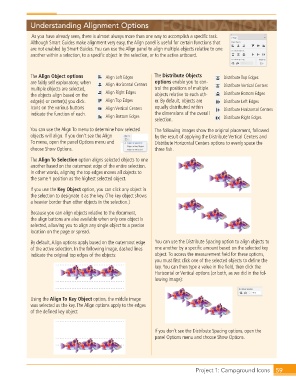
Understanding Alignment Options

                   As you have already seen, there is almost always more than one way to accomplish a specifi c task.
                  Although  Smart Guides make alignment very easy, the  Align panel is useful for certain functions that
                  are not enabled by Smart Guides. You can use the  Align panel to align multiple objects relative to one
                  another within a selection, to a specifi c object in the selection, or to the active artboard.


                  The Align Object options     Align Left Edges   The  Distribute Objects   Distribute Top Edges
                  are fairly self explanatory; when   Align Horizontal Centers  options enable you to con-  Distribute Vertical Centers
                  multiple objects are selected,                  trol the positions of multiple
                  the objects align based on the   Align Right Edges  objects relative to each oth-  Distribute Bottom Edges
                  edge(s) or center(s) you click.   Align Top Edges  er. By default, objects are   Distribute Left Edges
                  Icons on the various buttons   Align Vertical Centers  equally distributed within   Distribute Horizontal Centers
                  indicate the function of each.  Align Bottom Edges  the dimensions of the overall
                                                                  selection.                Distribute Right Edges

                  You can use the Align To menu to determine how selected   The following images show the original placement, followed
                  objects will align. If you don’t see the Align   by the result of applying the Distribute Vertical Centers and
                  To menu, open the panel Options menu and        Distribute Horizontal Centers options to evenly space the
                  choose Show Options.                            three fi sh.

                  The Align To Selection option aligns selected objects to one
                  another based on the outermost edge of the entire selection.
                  In other words, aligning the top edges moves all objects to
                  the same Y position as the highest selected object.

                  If you use the Key Object option, you can click any object in
                  the selection to designate it as the key. (The key object shows
                  a heavier border than other objects in the selection.)
                  Because you can align objects relative to the document,
                  the align buttons are also available when only one object is
                  selected, allowing you to align any single object to a precise
                  location on the page or spread.
                  By default, Align options apply based on the outermost edge   You can use the Distribute Spacing option to align objects to
                  of the active selection. In the following image, dashed lines   one another by a specifi c amount based on the selected key
                  indicate the original top edges of the objects:  object. To access the measurement fi eld for these options,
                                                                  you must fi rst click one of the selected objects to defi ne the
                                                                  key. You can then type a value in the fi eld, then click the
                                                                  Horizontal or Vertical options (or both, as we did in the fol-
                                                                  lowing image):


                  Using the Align To Key Object option, the middle image
                  was selected as the key. The Align options apply to the edges
                  of the defi ned key object:


                                                                  If you don’t see the Distribute Spacing options, open the
                                                                  panel Options menu and choose Show Options.


                                                                                   Project 1: Campground Icons  59

