


Page 30 - CC 2019 GD Look Inside
P. 30
17.  To the right of the third shape on the artboard, draw a fourth rounded
                   rectangle that is 126 pt square.
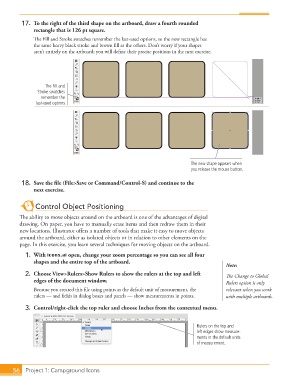
                   The Fill and Stroke swatches remember the last-used options, so the new rectangle has
                   the same heavy black stroke and brown fill as the others. Don’t worry if your shapes
                   aren’t entirely on the artboard; you will define their precise positions in the next exercise.


                        The Fill and
                     Stroke swatches
                      remember the
                    last-used options.


                                                                                The new shape appears when
                                                                                you release the mouse button.

               18.  Save the file (File>Save or Command/Control-S) and continue to the
                   next exercise.


                    Control Object Positioning
              The ability to move objects around on the artboard is one of the advantages of digital
              drawing. On paper, you have to manually erase items and then redraw them in their
              new locations. Illustrator offers a number of tools that make it easy to move objects
              around the artboard, either as isolated objects or in relation to other elements on the
              page. In this exercise, you learn several techniques for moving objects on the artboard.
                1.  With icons.ai open, change your zoom percentage so you can see all four
                   shapes and the entire top of the artboard.
                                                                                             Note:
                2.  Choose View>Rulers>Show Rulers to show the rulers at the top and left    The Change to Global
                   edges of the document window.                                             Rulers option is only
                   Because you created this file using points as the default unit of measurement, the    relevant when you work
                   rulers — and fields in dialog boxes and panels — show measurements in points.   with multiple artboards.

                3.  Control/right-click the top ruler and choose Inches from the contextual menu.


                                                                                  Rulers on the top and
                                                                                  left edges show measure-
                                                                                  ments in the default units
                                                                                  of measurement.


           56   Project 1: Campground Icons

