


Page 27 - CC 2019 GD Look Inside
P. 27
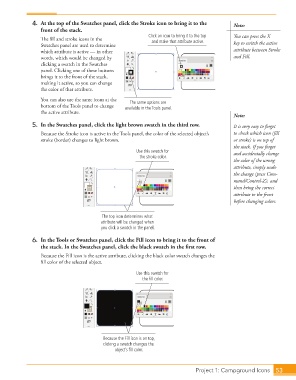
4.  At the top of the Swatches panel, click the Stroke icon to bring it to the   Note:
                      front of the stack.
                                                               Click an icon to bring it to the top   You can press the X
                      The fill and stroke icons in the          and make that attribute active.
                      Swatches panel are used to determine                                      key to switch the active
                      which attribute is active — in other                                      attribute between Stroke
                      words, which would be changed by                                          and Fill.
                      clicking a swatch in the Swatches
                      panel. Clicking one of these buttons
                      brings it to the front of the stack,
                      making it active, so you can change
                      the color of that attribute.
                      You can also use the same icons at the   The same options are
                      bottom of the Tools panel to change   available in the Tools panel.
                      the active attribute.
                                                                                                Note:
                   5.  In the Swatches panel, click the light brown swatch in the third row.    It is very easy to forget
                      Because the Stroke icon is active in the Tools panel, the color of the selected object’s   to check which icon (fill
                      stroke (border) changes to light brown.                                   or stroke) is on top of
                                                                                                the stack. If you forget
                                                           Use this swatch for                  and accidentally change
                                                            the stroke color.
                                                                                                the color of the wrong
                                                                                                attribute, simply undo
                                                                                                the change (press Com-
                                                                                                mand/Control-Z), and
                                                                                                then bring the correct
                                                                                                attribute to the front
                                                                                                before changing colors.

                                             The top icon determines what
                                             attribute will be changed when
                                             you click a swatch in the panel.

                   6.  In the Tools or Swatches panel, click the Fill icon to bring it to the front of
                      the stack. In the Swatches panel, click the black swatch in the first row.
                      Because the Fill icon is the active attribute, clicking the black color swatch changes the
                      fill color of the selected object.

                                                          Use this swatch for
                                                             the fill color.


                                              Because the Fill icon is on top,
                                              clicking a swatch changes the
                                                  object’s fill color.


                                                                                 Project 1: Campground Icons    53

