


Page 32 - CC 2019 GD Look Inside
P. 32
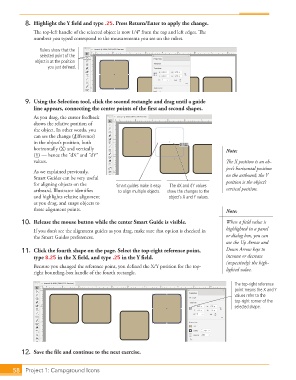
8. Highlight the Y field and type .25. Press Return/Enter to apply the change.
The top-left handle of the selected object is now 1/4 from the top and left edges. The
numbers you typed correspond to the measurements you see on the rulers.
Rulers show that the
selected point of the
object is at the position
you just defined.
9. Using the Selection tool, click the second rectangle and drag until a guide
line appears, connecting the center points of the first and second shapes.
As you drag, the cursor feedback
shows the relative position of
the object. In other words, you
can see the change (difference)
in the object’s position, both
horizontally (X) and vertically Note:
(Y) — hence the “dX” and “dY”
values. The X position is an ob-
ject’s horizontal position
As we explained previously, on the artboard; the Y
Smart Guides can be very useful
for aligning objects on the Smart guides make it easy The dX and dY values position is the object’s
artboard. Illustrator identifies to align multiple objects. show the changes to the vertical position.
and highlights relative alignment object’s X and Y values.
as you drag, and snaps objects to
those alignment points. Note:
10. Release the mouse button while the center Smart Guide is visible. When a field value is
If you don’t see the alignment guides as you drag, make sure that option is checked in highlighted in a panel
the Smart Guides preferences. or dialog box, you can
use the Up Arrow and
11. Click the fourth shape on the page. Select the top-right reference point, Down Arrow keys to
type 8.25 in the X field, and type .25 in the Y field. increase or decrease
(respectively) the high-
Because you changed the reference point, you defined the X/Y position for the top-
right bounding-box handle of the fourth rectangle. lighted value.
The top-right reference
point means the X and Y
values refer to the
top-right corner of the
selected shape.
12. Save the file and continue to the next exercise.
58 Project 1: Campground Icons

