


Page 31 - CC 2019 GD Look Inside
P. 31
4.  Choose the Selection tool at the top of the Tools panel, then click the left
                      rectangle on the artboard to select it.

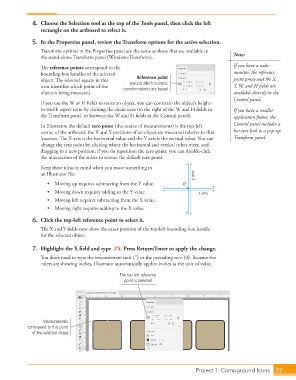
                  5.  In the  Properties panel, review the Transform options for the active selection.
                      Transform options in the Properties panel are the same as those that are available in
                      the stand-alone  Transform panel (Window>Transform).                      Note:

                      Th  e  reference points correspond to the                                 If you have a wide
                      bounding box handles of the selected                                      monitor, the reference
                                                           Reference point
                      object. Th  e selected square in this   around which numeric              point proxy and the X,
                      icon identifi es which point of the   transformations are based           Y, W, and H fi elds are
                      object is being measured.                                                 available directly in the
                                                                                                Control panel.
                      If you use the W or H fi elds to resize an object, you can constrain the object’s height-
                      to-width aspect ratio by clicking the chain icon (to the right of the W and H fi elds in   If you have a smaller
                      the  Transform panel, or between the W and H fi elds in the Control panel).   application frame, the

                      In Illustrator, the default  zero point (the source of measurements) is the top-left   Control panel includes a
                      corner of the artboard; the X and Y positions of an object are measured relative to that   hot-text link to a pop-up
                      location. Th  e X axis is the horizontal value and the Y axis is the vertical value. You can   Transform panel.
                      change the zero point by clicking where the horizontal and vertical  rulers meet, and
                      dragging to a new position; if you do reposition the zero point, you can double-click
                      the intersection of the rulers to restore the default zero point.
                                                                             –
                      Keep these ideas in mind when you move something in
                      an Illustrator fi le:                                      y axis
                         •  Moving up requires subtracting from the Y value.  –  0      +
                         •  Moving down requires adding to the Y value.           x axis
                         •  Moving left requires subtracting from the X value.
                         •  Moving right requires adding to the X value.
                                                                             +
                  6.  Click the top-left reference point to select it.
                      Th  e X and Y fi elds now show the exact position of the top-left  bounding box handle
                      for the selected object.

                  7.  Highlight the X fi eld and type .25. Press Return/Enter to apply the change.
                      You don’t need to type the measurement  unit (″) or the preceding zero (0). Because the
                      rulers are showing inches, Illustrator automatically applies inches as the unit of value.
                                                    The top-left reference
                                                      point is selected.


                       Measurements
                 correspond to this point
                   of the selected shape.


                                                                                   Project 1: Campground Icons  57

