


Page 24 - CC 2019 GD Look Inside
P. 24
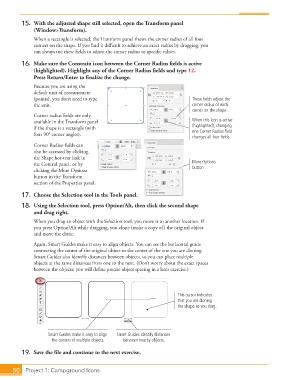
15.  With the adjusted shape still selected, open the Transform panel
                   (Window>Transform).
                   When a rectangle is selected, the  Transform panel shows the  corner radius of all four
                   corners on the shape. If you fi nd it diffi  cult to achieve an exact radius by dragging, you
                   can always use these fi elds to adjust the corner radius to specifi c values.

               16.  Make sure the Constrain icon between the Corner Radius fi elds is active
                   (highlighted). Highlight any of the  Corner Radius fi elds and type 12.
                   Press Return/Enter to fi nalize the change.
                   Because you are using the
                   default unit of measurement
                   (points), you don’t need to type                             These fields adjust the
                   the unit.                                                    corner radius of each
                                                                                corner on the shape.
                   Corner radius fi elds are only
                   available in the Transform panel                             When this icon is active
                   if the shape is a rectangle (with                            (highlighted), changing
                   four 90° corner angles).                                     one Corner Radius field
                                                                                changes all four fields.
                   Corner Radius fi elds can
                   also be accessed by clicking
                   the Shape hot-text link in
                   the  Control panel, or by                                    More Options
                   clicking the More Options                                    button
                   button in the Transform
                   section of the  Properties panel.

               17.  Choose the  Selection tool in the Tools panel.

               18.  Using the Selection tool, press Option/Alt, then click the second shape
                   and drag right.
                   When you drag an object with the Selection tool, you move it to another location. If
                   you press Option/Alt while dragging, you  clone (make a copy of) the original object
                   and move the clone.

                   Again,  Smart Guides make it easy to align objects. You can see the horizontal guide
                   connecting the center of the original object to the center of the one you are cloning.
                   Smart Guides also identify distances between objects, so you can place multiple
                   objects at the same distances from one to the next. (Don’t worry about the exact spaces
                   between the objects; you will defi ne precise object spacing in a later exercise.)


                                                                          This cursor indicates
                                                                          that you are cloning
                                                                          the shape as you drag.


                         Smart Guides make it easy to align   Smart Guides identify distances
                          the centers of multiple objects.  between nearby objects.

               19.  Save the fi le and continue to the next exercise.


           50     Project 1: Campground Icons

