


Page 26 - CC 2019 GD Look Inside
P. 26
Control Fill and Stroke Attributes

              At the beginning of the previous exercise, you clicked the  Default Fill and Stroke
              button in the  Tools panel to apply a white  fi ll and 1-pt black  stroke to the objects you
              created. Obviously, most artwork requires more than these basic attributes.
                  As you complete the projects in this book, you will learn about styles, patterns,
              gradients, eff ects, and other attributes that can take an illustration from fl at to
              fabulous. In this exercise, you learn about a number of options for changing the
              basic fi ll, stroke, and color attributes for objects on the page.

               1. With icons.ai open, choose the  Selection tool in the Tools panel. Click
                   the left rectangle on the artboard to select it.

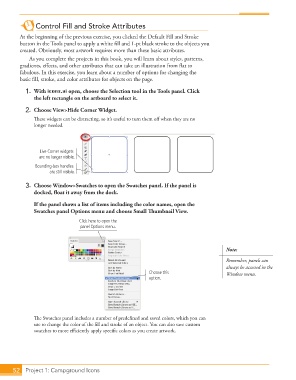
               2.  Choose View>Hide  Corner Widget.
                   Th  ese widgets can be distracting, so it’s useful to turn them off  when they are no
                   longer needed.


                      Live Corner widgets
                     are no longer visible.
                    Bounding-box handles
                         are still visible.

               3.  Choose Window>Swatches to open the  Swatches panel. If the panel is
                   docked, fl oat it away from the dock.

                     If the panel shows a list of items including the color names, open the
                   Swatches panel Options menu and choose Small Th  umbnail View.
                                     Click here to open the
                                     panel Options menu.


                                                                                             Note:

                                                                                             Remember, panels can
                                                                                             always be accessed in the
                                                               Choose this                   Window menu.
                                                               option.


                   Th  e Swatches panel includes a number of predefi ned and saved colors, which you can
                   use to change the color of the fi ll and stroke of an object. You can also save custom
                   swatches to more effi  ciently apply specifi c colors as you create artwork.


           52     Project 1: Campground Icons

