


Page 23 - CC 2019 GD Look Inside
P. 23
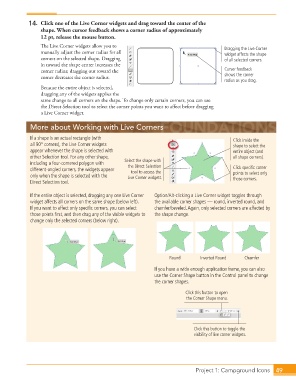
14.  Click one of the  Live Corner widgets and drag toward the center of the
                      shape. When cursor feedback shows a corner radius of approximately
                      12 pt, release the mouse button.

                      Th  e Live Corner widgets allow you to                                Dragging the Live Corner
                      manually adjust the corner radius for all                             widget affects the shape
                      corners on the selected shape. Dragging                               of all selected corners.
                      in toward the shape center increases the
                      corner radius; dragging out toward the                                Cursor feedback
                      corner decreases the corner radius.                                   shows the corner
                                                                                            radius as you drag.
                      Because the entire object is selected,
                      dragging any of the widgets applies the
                      same change to all corners on the shape. To change only certain corners, you can use
                      the Direct Selection tool to select the corner points you want to aff ect before dragging
                      a Live Corner widget.

                  More about Working with Live Corners

                  If a shape is an actual rectangle (with                                       Click inside the
                  all 90° corners), the Live Corner widgets                                     shape to select the
                  appear whenever the shape is selected with                                    entire object (and
                  either Selection tool. For any other shape,                                   all shape corners).
                  including a four-cornered polygon with   Select the shape with
                                                       the Direct Selection
                  different-angled corners, the widgets appear   tool to access the             Click specific corner
                  only when the shape is selected with the   Live Corner widgets.               points to select only
                                                                                                those corners.
                  Direct Selection tool.
                  If the entire object is selected, dragging any one Live Corner   Option/Alt-clicking a Live Corner widget toggles through
                  widget affects all corners on the same shape (below left).   the available corner shapes — round, inverted round, and
                  If you want to affect only specifi c corners, you can select   chamfer/beveled. Again, only selected corners are affected by
                  those points fi rst, and then drag any of the visible widgets to   the shape change.
                  change only the selected corners (below right).


                                                                       Round       Inverted Round   Chamfer

                                                                  If you have a wide enough application frame, you can also
                                                                  use the Corner Shape button in the Control panel to change
                                                                  the corner shapes.
                                                                             Click this button to open
                                                                              the Corner Shape menu.


                                                                                 Click this button to toggle the
                                                                                 visibility of live corner widgets.


                                                                                   Project 1: Campground Icons  49

