


Page 25 - CC 2019 GD Look Inside
P. 25
Understanding Selection Basics

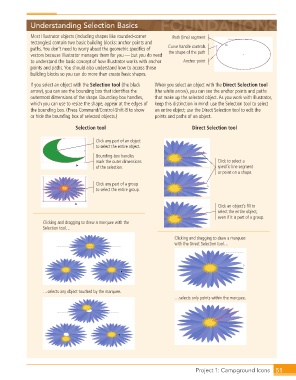
                  Most Illustrator objects (including shapes like rounded-corner    Path (line) segment
                  rectangles) contain two basic building blocks: anchor points and
                  paths. You don’t need to worry about the geometric specifics of   Curve handle controls
                  vectors because Illustrator manages them for you — but you do need   the shape of the path
                  to understand the basic concept of how Illustrator works with anchor   Anchor point
                  points and paths. You should also understand how to access those
                  building blocks so you can do more than create basic shapes.

                  If you select an object with the Selection tool (the black   When you select an object with the Direct Selection tool
                  arrow), you can see the bounding box that identifies the   (the white arrow), you can see the anchor points and paths
                  outermost dimensions of the shape. Bounding-box handles,   that make up the selected object. As you work with Illustrator,
                  which you can use to resize the shape, appear at the edges of   keep this distinction in mind: use the Selection tool to select
                  the bounding box. (Press Command/Control-Shift-B to show   an entire object; use the Direct Selection tool to edit the
                  or hide the bounding box of selected objects.)  points and paths of an object.

                                   Selection tool                               Direct Selection tool

                                           Click any part of an object
                                           to select the entire object.
                                           Bounding-box handles
                                           mark the outer dimensions                      Click to select a
                                           of the selection.                              specific line segment
                                                                                          or point on a shape.

                                           Click any part of a group
                                           to select the entire group.


                                                                                          Click an object’s fill to
                                                                                          select the entire object,
                                                                                          even if it is part of a group.
                       Clicking and dragging to draw a marquee with the
                       Selection tool…

                                                                         Clicking and dragging to draw a marquee
                                                                         with the Direct Selection tool…


                       …selects any object touched by the marquee.
                                                                         …selects only points within the marquee.


                                                                                 Project 1: Campground Icons    51

