


Page 68 - CC2018_PS_Look_Inside
P. 68
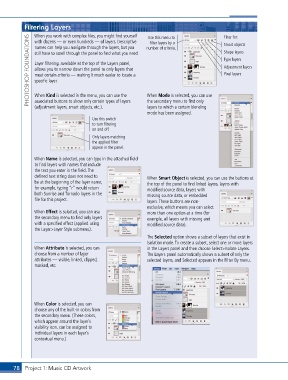
Filtering Layers                                  number of criteria.             Filter for:
               When you work with complex files, you might find yourself
             PHOTOSHOP FOUNDATIONS  still have to scroll through the panel to find what you need.  Shape layers
                                                              Use this menu to
               with dozens — or even hundreds — of layers. Descriptive
                                                               filter layers by a
                                                                                             Smart objects
               names can help you navigate through the layers, but you
                                                                                             Type layers
               Layer filtering, available at the top of the Layers panel,
                                                                                             Adjustment layers
               allows you to narrow down the panel to only layers that
                                                                                             Pixel layers
               meet certain criteria — making it much easier to locate a
               specific layer.

               When Kind is selected in the menu, you can use the
                                                              the secondary menu to find only
               associated buttons to show only certain types of layers
                                                              layers to which a certain blending
               (adjustment layers, smart objects, etc.).      When Mode is selected, you can use
                                                              mode has been assigned.
                                       Use this switch
                                       to turn filtering
                                       on and off.
                                       Only layers matching
                                       the applied filter
                                       appear in the panel.

               When Name is selected, you can type in the attached field
               to find layers with names that include
               the text you enter in the field. The
               defined text string does not need to           When Smart Object is selected, you can use the buttons at
               be at the beginning of the layer name;         the top of the panel to find linked layers, layers with
               for example, typing “r” would return           modified source data, layers with
               both Sunrise and Tornado layers in the         missing source data, or embedded
               file for this project.                         layers. These buttons are non-
                                                              exclusive, which means you can select
               When Effect is selected, you can use           more than one option at a time (for
               the secondary menu to find only layers         example, all layers with missing and
               with a specified effect (applied using         modified source data).
               the Layer>Layer Style submenu).
                                                              The Selected option shows a subset of layers that exist in
                                                              Isolation mode. To create a subset, select one or more layers
               When Attribute is selected, you can            in the Layers panel and then choose Select>Isolate Layers.
               choose from a number of layer                  The Layers panel automatically shows a subset of only the
               attributes — visible, linked, clipped,         selected layers, and Selected appears in the Filter By menu.
               masked, etc.


               When Color is selected, you can
               choose any of the built-in colors from
               the secondary menu. (These colors,
               which appear around the layer’s
               visibility icon, can be assigned to
               individual layers in each layer’s
               contextual menu.)


       78 Project 1: Music CD Artwork

