


Page 30 - CS6_ID_Look_Inside
P. 30
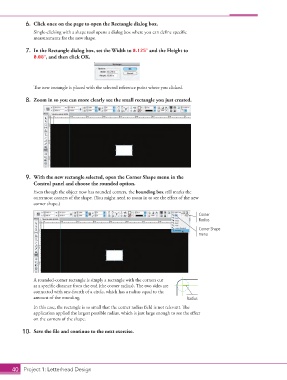
6.  Click once on the page to open the Rectangle dialog box.
                    Single-clicking with a shape tool opens a dialog box where you can define specific
                    measurements for the new shape.


                 7.  In the Rectangle dialog box, set the Width to 0.125″ and the Height to
                    0.08″, and then click OK.


                    The new rectangle is placed with the selected reference point where you clicked.

                 8.  Zoom in so you can more clearly see the small rectangle you just created.


                 9.  With the new rectangle selected, open the Corner Shape menu in the
                    Control panel and choose the rounded option.
                    Even though the object now has rounded corners, the bounding box still marks the
                    outermost corners of the shape. (You might need to zoom in to see the effect of the new
                    corner shape.)

                                                                                        Corner
                                                                                        Radius
                                                                                        Corner Shape
                                                                                        menu


                    A rounded-corner rectangle is simply a rectangle with the corners cut
                    at a specific distance from the end (the corner radius). The two sides are
                    connected with one-fourth of a circle, which has a radius equal to the
                    amount of the rounding.                                        Radius
                    In this case, the rectangle is so small that the corner radius field is not relevant. The
                    application applied the largest possible radius, which is just large enough to see the effect
                    on the corners of the shape.

                10.  Save the file and continue to the next exercise.


           40 Project 1: Letterhead Design

