


Page 27 - CS6_ID_Look_Inside
P. 27
The Control Panel in Depth

                        The Control panel is one of the most versatile, productive tools in the InDesign workspace, combining all of the most
                     INDESIGN FOUNDATIONS  means different options are available depending on what is selected in the layout. Finally, it is customizable, which means
                        common formatting options into a single, compact format across the top of the workspace. It is context sensitive, which
                        you can change the options that are available in the panel.

                        It is also important to note that the options available in the Control panel might be limited by the active workspace, as well
                        as by the width of your monitor or Application frame.

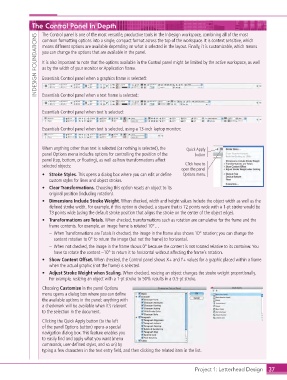
                        Essentials Control panel when a graphics frame is selected:


                        Essentials Control panel when a text frame is selected:


                        Essentials Control panel when text is selected:


                        Essentials Control panel when text is selected, using a 13-inch laptop monitor:


                        When anything other than text is selected (or nothing is selected), the   Quick Apply
                        panel Options menu includes options for controlling the position of the   button
                        panel (top, bottom, or floating), as well as how transformations affect
                        selected objects:                                         Click here to
                                                                                 open the panel
                        •  Stroke Styles. This opens a dialog box where you can edit or define   Options menu.
                           custom styles for lines and object strokes.
                        •  Clear Transformations. Choosing this option resets an object to its
                           original position (including rotation).
                        •  Dimensions Include Stroke Weight. When checked, width and height values include the object width as well as the
                           defined stroke width. For example, if this option is checked, a square that is 72 points wide with a 1-pt stroke would be
                           73 points wide (using the default stroke position that aligns the stroke on the center of the object edge).
                        •  Transformations are Totals. When checked, transformations such as rotation are cumulative for the frame and the
                           frame contents. For example, an image frame is rotated 10°…
                           –   When Transformations are Totals is checked, the image in the frame also shows 10° rotation; you can change the
                            content rotation to 0° to return the image (but not the frame) to horizontal.
                           –   When not checked, the image in the frame shows 0° because the content is not rotated relative to its container. You
                            have to rotate the content –10° to return it to horizontal without affecting the frame’s rotation.
                        •  Show Content Offset. When checked, the Control panel shows X+ and Y+ values for a graphic placed within a frame
                           when the actual graphic (not the frame) is selected.
                        •  Adjust Stroke Weight when Scaling. When checked, resizing an object changes the stroke weight proportionally.
                           For example, resizing an object with a 1-pt stroke to 50% results in a 0.5-pt stroke.
                        Choosing Customize in the panel Options
                        menu opens a dialog box where you can define
                        the available options in the panel; anything with
                        a checkmark will be available when it’s relevant
                        to the selection in the document.

                        Clicking the Quick Apply button (to the left
                        of the panel Options button) opens a special
                        navigation dialog box. This feature enables you
                        to easily find and apply what you want (menu
                        commands, user-defined styles, and so on) by
                        typing a few characters in the text entry field, and then clicking the related item in the list.


                                                                                      Project 1: Letterhead Design  37

