


Page 28 - CS6_ID_Look_Inside
P. 28
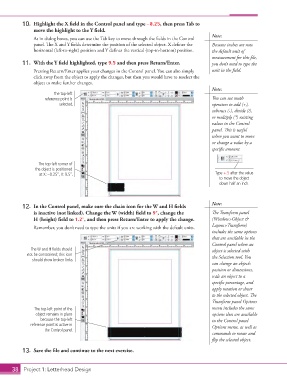
10.  Highlight the X field in the Control panel and type –0.25, then press Tab to
                    move the highlight to the Y field.
                                                                                             Note:
                    As in dialog boxes, you can use the Tab key to move through the fields in the Control
                    panel. The X and Y fields determine the position of the selected object. X defines the   Because inches are now
                    horizontal (left-to-right) position and Y defines the vertical (top-to-bottom) position.  the default unit of
                                                                                             measurement for this file,
                11.  With the Y field highlighted, type 9.5 and then press Return/Enter.     you don’t need to type the
                    Pressing Return/Enter applies your changes in the Control panel. You can also simply   unit in the field.
                    click away from the object to apply the changes, but then you would have to reselect the
                    object to make further changes.
                                                                                             Note:
                            The top-left
                         reference point is                                                  You can use math
                               selected.                                                     operators to add (+),
                                                                                             subtract (-), divide (/),
                                                                                             or multiply (*) existing
                                                                                             values in the Control
                                                                                             panel. This is useful
                                                                                             when you want to move
                                                                                             or change a value by a
                                                                                             specific amount.


                      The top-left corner of
                     the object is positioned
                      at X: –0.25”, Y: 9.5”.                                                   Type +.5 after the value
                                                                                                to move the object
                                                                                                down half an inch.


                                                                                             Note:
                12.  In the Control panel, make sure the chain icon for the W and H fields
                    is inactive (not linked). Change the W (width) field to 9″, change the    The Transform panel
                    H (height) field to 1.2″, and then press Return/Enter to apply the change.   (Window>Object &
                    Remember, you don’t need to type the units if you are working with the default units.  Layout>Transform)
                                                                                             includes the same options
                                                                                             that are available in the
                                                                                             Control panel when an
                   The W and H fields should                                                 object is selected with
                  not be constrained; this icon                                              the Selection tool. You
                    should show broken links.
                                                                                             can change an object’s
                                                                                             position or dimensions,
                                                                                             scale an object to a
                                                                                             specific percentage, and
                                                                                             apply rotation or shear
                                                                                             to the selected object. The
                                                                                             Transform panel Options
                    The top-left point of the                                                menu includes the same
                     object remains in place                                                 options that are available
                       because the top-left                                                  in the Control panel
                   reference point is active in                                              Options menu, as well as
                         the Control panel.
                                                                                             commands to rotate and
                                                                                             flip the selected object.
                13.  Save the file and continue to the next exercise.


           38 Project 1: Letterhead Design

