


Page 24 - CS6_ID_Look_Inside
P. 24
Stage 2  Creating Basic Page Elements


               Based on the approved sketch, the client’s letterhead includes several elements:
                  •  A “filmstrip” graphic to frame a number of thumbnails of the client’s work
                  •  A logo that was created in Adobe Illustrator

                  •  A tag line, separated from the logo with a curved line
                  •  Contact information, which was provided to you as a rich-text file

                  •  Actual thumbnails of the client’s photographs, which were supplied to you as
                     ready-to-print TIFF files.

                  Other than the logo and the supplied photos, you need to create these elements directly in the
               InDesign file. Fortunately, the software includes sophisticated drawing tools that can create everything
               you need. Before you begin, however, you should understand the different types of elements that you
               will encounter when you design files in InDesign.
                  Vector graphics are composed of mathematical descriptions of a series of lines and shapes. Vector
               graphics are resolution independent; they can be freely scaled, and they are automatically output at
               the resolution of the output device. The shapes that you create in Adobe InDesign, or in drawing
               applications such as Adobe Illustrator, are vector graphics.
                  Raster images, such as photographs or files created in Adobe Photoshop, are made up of a grid of
               independent pixels (rasters or bits) in rows and columns (called a bitmap). Raster files are resolution
               dependent — their resolution is determined when you scan, photograph, or otherwise create the file.
               You can typically reduce raster images, but you cannot enlarge them without losing image quality.
                  Line art is a type of raster image that is made up entirely of 100% solid areas; the pixels in a line-
               art image have only two options: they can be all black or all white. Examples of line art are UPC bar
               codes or pen-and-ink drawings.


                   create Basic Frames
               Although much drawing and illustration work is done in a dedicated illustration
               program such as Adobe Illustrator, you can use the drawing tools in InDesign to create
               vector artwork. In fact, the drawing tools in InDesign are actually a limited subset
               of the more comprehensive Illustrator toolset, which means you can create fairly
               sophisticated artwork entirely within the layout application. In this exercise, you are
               going to use the basic InDesign drawing tools to create a filmstrip graphic, which will
               serve as the background for the client’s image samples.

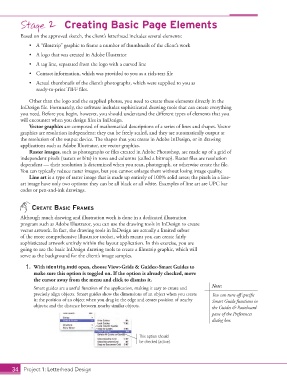
                 1.  With identity.indd open, choose View>Grids & Guides>Smart Guides to
                    make sure this option is toggled on. If the option is already checked, move
                    the cursor away from the menu and click to dismiss it.
                    Smart guides are a useful function of the application, making it easy to create and   Note:
                    precisely align objects. Smart guides show the dimensions of an object when you create   You can turn off specific
                    it; the position of an object when you drag it; the edge and center position of nearby   Smart Guide functions in
                    objects; and the distance between nearby similar objects.                the Guides & Pasteboard
                                                                                             pane of the Preferences
                                                                                             dialog box.


                                                                This option should
                                                                be checked (active).


           34 Project 1: Letterhead Design

