


Page 19 - CS6_ID_Look_Inside
P. 19
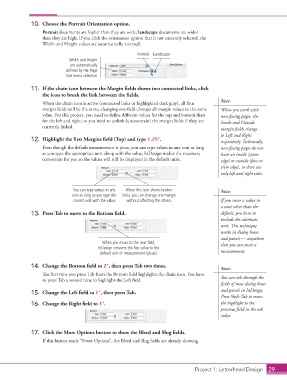
10.  Choose the Portrait Orientation option.
                        Portrait documents are higher than they are wide; landscape documents are wider
                        than they are high. If you click the orientation option that is not currently selected, the
                        Width and Height values are automatically reversed.
                                                               Portrait  Landscape
                                   Width and Height
                                   are automatically
                                 defined by the Page
                                 Size menu selection.

                   11.  If the chain icon between the Margin fields shows two connected links, click
                        the icon to break the link between the fields.
                                                                                                 Note:
                        When the chain icon is active (connected links or highlighted dark gray), all four
                        margin fields will be the same; changing one field changes all margin values to the same   When you work with
                        value. For this project, you need to define different values for the top and bottom than   non-facing pages, the
                        for the left and right, so you need to unlink (unconstrain) the margin fields if they are   Inside and Outside
                        currently linked.                                                        margin fields change
                                                                                                 to Left and Right
                   12.  Highlight the first Margins field (Top) and type 1.25”.                  respectively. Technically,
                        Even though the default measurement is picas, you can type values in any unit as long   non-facing pages do not
                        as you type the appropriate unit along with the value; InDesign makes the necessary   have an inside (spine
                        conversion for you so the values will still be displayed in the default units.  edge) or outside (face or
                                                                                                 trim edge), so there are
                                                                                                 only left and right sides.


                                    You can type values in any   When this icon shows broken     Note:
                                    unit as long as you type the   links, you can change one margin
                                    correct unit with the value.  without affecting the others.  If you enter a value in
                                                                                                 a unit other than the
                   13.  Press Tab to move to the Bottom field.                                   default, you have to
                                                                                                 include the alternate
                                                                                                 unit. This technique
                                                                                                 works in dialog boxes
                                                                                                 and panels — anywhere
                                                When you move to the next field,                 that you can enter a
                                               InDesign converts the Top value to the
                                               default unit of measurement (picas).              measurement.

                   14.  Change the Bottom field to 2”, then press Tab two times.                 Note:

                        The first time you press Tab from the Bottom field highlights the chain icon. You have   You can tab through the
                        to press Tab a second time to highlight the Left field.
                                                                                                 fields of most dialog boxes
                                                                                                 and panels in InDesign.
                   15.  Change the Left field to 1”, then press Tab.
                                                                                                 Press Shift-Tab to move
                   16.  Change the Right field to 1”.                                            the highlight to the
                                                                                                 previous field in the tab
                                                                                                 order.


                   17.  Click the More Options button to show the Bleed and Slug fields.
                        If this button reads “Fewer Options”, the Bleed and Slug fields are already showing.


                                                                                      Project 1: Letterhead Design  29

