


Page 39 - CC 2019 ID Look Inside
P. 39
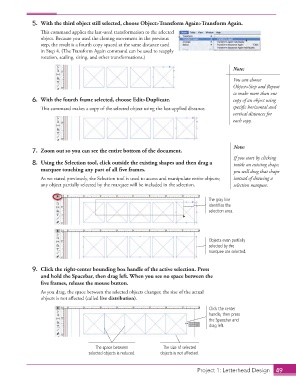
5.  With the third object still selected, choose Object>Transform Again> Transform Again.
                      Th  is command applies the last-used transformation to the selected
                      object. Because you used the cloning movement in the previous
                      step, the result is a fourth copy spaced at the same distance used
                      in Step 4. (Th  e Transform Again command can be used to reapply
                      rotation, scaling, sizing, and other transformations.)

                                                                                                Note:

                                                                                                You can choose
                                                                                                Object> Step and Repeat
                                                                                                to make more than one
                  6.  With the fourth frame selected, choose Edit> Duplicate.                   copy of an object using
                      Th  is command makes a copy of the selected object using the last-applied distance.   specifi c horizontal and
                                                                                                vertical distances for
                                                                                                each copy.


                                                                                                Note:
                  7.  Zoom out so you can see the entire bottom of the document.
                                                                                                If you start by clicking
                  8.  Using the Selection tool, click outside the existing shapes and then drag a   inside an existing shape,
                      marquee touching any part of all fi ve frames.                            you will drag that shape
                      As we stated previously, the  Selection tool is used to access and manipulate entire objects;   instead of drawing a
                      any object partially selected by the marquee will be included in the selection.   selection marquee.

                                                                                      The gray line
                                                                                      identifies the
                                                                                      selection area.


                                                                                      Objects even partially
                                                                                      selected by the
                                                                                      marquee are selected.


                  9.  Click the right-center bounding box handle of the active selection. Press
                      and hold the Spacebar, then drag left. When you see no space between the
                      fi ve frames, release the mouse button.
                      As you drag, the space between the selected objects changes; the size of the actual
                      objects is not aff ected (called  live distribution).
                                                                                      Click the center
                                                                                      handle, then press
                                                                                      the Spacebar and
                                                                                      drag left.


                                           The space between         The size of selected
                                        selected objects is reduced.  objects is not affected.


                                                                                    Project 1: Letterhead Design  49

