


Page 38 - CC 2019 ID Look Inside
P. 38
Clone, Align, and Distribute Multiple Objects

              As you should have already noticed, there is often more than one way to accomplish
              the same task in InDesign. Aligning multiple objects on a page is no exception.
              In this exercise you will explore a number of alignment options as you create the
              remaining graphics frames for the client’s thumbnail images.

               1. With gcm-letterhead.indd open, choose the Selection tool in the Tools panel.
                   Th  e  Selection tool is used to select entire objects; the  Direct Selection tool is used to
                   select parts of objects or the contents of a frame.
                   Using the Selection tool, you can
                      •  Click and drag a handle to resize selected objects.
                      •  Shift-click and drag to resize objects proportionally.
                      •  Command/Control-click and drag to scale selected objects.
                      •  Command/Control-Shift-click and drag to scale selected objects proportionally.
                      •  Press Option/Alt with any of these to apply the transformation around the
                         selection’s center point.

               2.  Click inside the area of the empty graphics frame to select the shape.

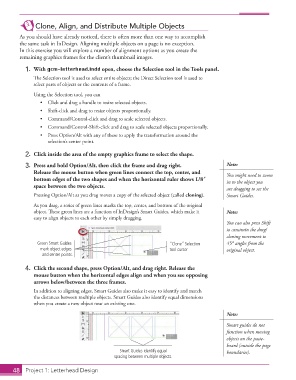
               3.  Press and hold Option/Alt, then click the frame and drag right.           Note:
                   Release the mouse button when green lines connect the top, center, and    You might need to zoom
                   bottom edges of the two shapes and when the horizontal ruler shows 1/8″   in to the object you
                   space between the two objects.
                                                                                             are dragging to see the
                   Pressing Option/Alt as you drag moves a copy of the selected object (called  cloning).  Smart Guides.

                   As you drag, a series of green lines marks the top, center, and bottom of the original
                   object. Th  ese green lines are a function of InDesign’s  Smart Guides, which make it   Note:
                   easy to align objects to each other by simply dragging.
                                                                                             You can also press Shift
                                                                                             to constrain the drag/
                                                                                             cloning movement to
                     Green Smart Guides                                “Clone” Selection     45° angles from the
                      mark object edges                                tool cursor           original object.
                       and center points.

               4.  Click the second shape, press Option/Alt, and drag right. Release the
                   mouse button when the horizontal edges align and when you see opposing
                   arrows below/between the three frames.
                   In addition to aligning edges, Smart Guides also make it easy to identify and match
                   the distances between multiple objects.  Smart Guides also identify equal dimensions
                   when you create a new object near an existing one.

                                                                                             Note:
                                                                                             Smart guides do not
                                                                                             function when moving
                                                                                             objects on the paste-
                                                                                             board (outside the page
                                                    Smart Guides identify equal              boundaries).
                                                  spacing between multiple objects.

           48     Project 1: Letterhead Design

