


Page 21 - CC 2019 ID Look Inside
P. 21
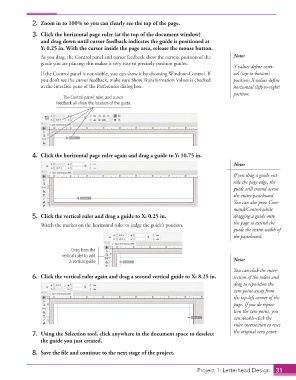
2.  Zoom in to 100% so you can clearly see the top of the page.

                   3.  Click the horizontal page ruler (at the top of the document window)
                      and drag down until cursor feedback indicates the guide is positioned at
                      Y: 0.25 in. With the cursor inside the page area, release the mouse button.
                      As you drag, the Control panel and cursor feedback show the current position of the   Note:
                      guide you are placing; this makes it very easy to precisely position guides.
                                                                                                Y values define verti-
                      If the Control panel is not visible, you can show it by choosing Window>Control. If   cal (top-to-bottom)
                      you don’t see the cursor feedback, make sure Show Transformation Values is checked   position; X values define
                      in the Interface pane of the Preferences dialog box.                      horizontal (left-to-right)
                                                                                                position.
                               The Control panel, ruler, and cursor
                            feedback all show the location of the guide.


                   4.  Click the horizontal page ruler again and drag a guide to Y: 10.75 in.
                                                                                                Note:
                                                                                                If you drag a guide out-
                                                                                                side the page edge, the
                                                                                                guide will extend across
                                                                                                the entire pasteboard.
                                                                                                You can also press Com-
                                                                                                mand/Control while
                   5.  Click the vertical ruler and drag a guide to X: 0.25 in.                 dragging a guide onto
                      Watch the marker on the horizontal ruler to judge the guide’s position.   the page to extend the
                                                                                                guide the entire width of
                                                                                                the pasteboard.

                                  Drag from the
                              vertical ruler to add
                                 a vertical guide.                                              Note:
                                                                                                You can click the inter-
                   6.  Click the vertical ruler again and drag a second vertical guide to X: 8.25 in.  section of the rulers and
                                                                                                drag to reposition the
                                                                                                zero point away from
                                                                                                the top-left corner of the
                                                                                                page. If you do reposi-
                                                                                                tion the zero point, you
                                                                                                can double-click the
                                                                                                ruler intersection to reset
                   7.  Using the Selection tool, click anywhere in the document space to deselect   the original zero point.
                      the guide you just created.

                   8.  Save the file and continue to the next stage of the project.


                                                                                  Project 1: Letterhead Design  31

