


Page 18 - CC 2019 ID Look Inside
P. 18
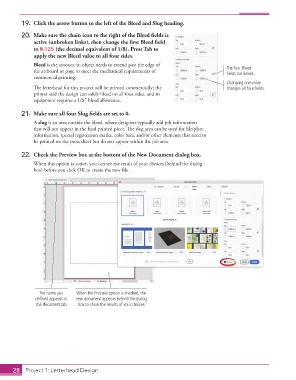
19.  Click the arrow button to the left of the Bleed and Slug heading.

               20.  Make sure the  chain icon to the right of the Bleed fi elds is
                   active (unbroken links), then change the fi rst Bleed fi eld
                   to 0.125 (the decimal equivalent of 1/8). Press Tab to
                   apply the new Bleed value to all four sides.
                   Bleed is the amount an object needs to extend past the edge of            The four Bleed
                   the  artboard or page to meet the mechanical requirements of              fields are linked.
                   commercial printing.
                                                                                             Changing one value
                   Th  e letterhead for this project will be printed commercially; the       changes all four fields.
                   printer said the design can safely bleed on all four sides, and its
                   equipment requires a 1/8″  bleed allowance.


               21.  Make sure all four Slug fi elds are set to 0 .
                   A  slug is an area outside the bleed, where designers typically add job information
                   that will not appear in the fi nal printed piece. Th  e slug area can be used for fi le/plate
                   information, special registration marks, color bars, and/or other elements that need to
                   be printed on the press sheet but do not appear within the job area.


               22.  Check the Preview box at the bottom of the New Document dialog box.
                   When this option is active, you can see the result of your choices (behind the dialog
                   box) before you click OK to create the new fi le.


                     The name you   When the Preview option is checked, the
                    defined appears in   new document appears behind the dialog
                    the document tab.  box to show the results of your choices.


           28     Project 1: Letterhead Design

