


Page 16 - CC 2019 ID Look Inside
P. 16
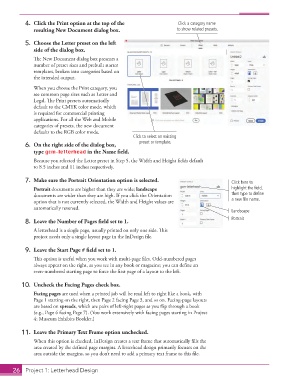
4.  Click the Print option at the top of the                Click a category name
                   resulting  New Document dialog box.                    to show related presets.

               5.  Choose the Letter preset on the left
                   side of the dialog box.

                   Th  e New Document dialog box presents a
                   number of preset sizes and prebuilt starter
                   templates, broken into categories based on
                   the intended output.

                   When you choose the Print category, you
                   see common page sizes such as Letter and
                   Legal. Th  e Print presets automatically
                   default to the CMYK color mode, which
                   is required for commercial printing
                   applications. For all the Web and Mobile
                   categories of presets, the new document
                   defaults to the RGB color mode.
                                                         Click to select an existing
               6.  On the right side of the dialog box,     preset or template.
                   type gcm-letterhead in the Name fi eld.
                   Because you selected the Letter preset in Step 5, the Width and Height fi elds default
                   to 8.5 inches and 11 inches respectively.


               7.  Make sure the Portrait Orientation option is selected.                      Click here to
                     Portrait documents are higher than they are wide;  landscape              highlight the field,
                   documents are wider than they are high. If you click the Orientation        then type to define
                   option that is not currently selected, the Width and Height values are      a new file name.
                   automatically reversed.
                                                                                               Landscape
               8.  Leave the Number of Pages fi eld set to 1.                                  Portrait

                   A letterhead is a single page, usually printed on only one side. Th  is
                   project needs only a single layout page in the InDesign fi le.

               9.  Leave the Start Page # fi eld set to 1.
                   Th  is option is useful when you work with multi-page fi les. Odd-numbered pages
                   always appear on the right, as you see in any book or magazine; you can defi ne an
                   even-numbered starting page to force the fi rst page of a layout to the left.

               10.  Uncheck the Facing Pages check box.

                     Facing pages are used when a printed job will be read left to right like a book, with
                   Page 1 starting on the right, then Page 2 facing Page 3, and so on. Facing-page layouts
                   are based on  spreads, which are pairs of left-right pages as you fl ip through a book
                   (e.g., Page 6 facing Page 7). (You work extensively with facing pages starting in Project
                   4: Museum Exhibits Booklet.)

               11.  Leave the Primary Text Frame option unchecked.
                   When this option is checked, InDesign creates a text frame that automatically fi lls the
                   area created by the defi ned page margins. A letterhead design primarily focuses on the
                   area outside the margins, so you don’t need to add a  primary text frame to this fi le.


           26     Project 1: Letterhead Design

