


Page 17 - CC 2019 ID Look Inside
P. 17
12.  Choose Inches in the Units menu.
                      By default, InDesign uses picas as the unit of measurement for print documents; mea-
                      surements in this dialog box are shown in picas and points, using the “ApB” notation
                      (for A picas and B points).                                               Note:

                      If you choose Web or Digital Publishing, InDesign changes the default unit of   Picas are the measuring
                      measurement to pixels, which is more appropriate for web design.          units traditionally used

                      Regardless of which unit of measurement you choose when you create a new file,   in typography; they are
                      you can change the setting for a specific file in the Units and Increments pane of the   still used by many people
                      Preferences dialog box. InDesign supports all modern units of measurement, including   in the graphic commu-
                      points, picas, inches, millimeters, centimeters, and pixels (as well as a few others from   nications industry.
                      historic typography).
                                                                                                1 point = 1/72 inch
                      You can also type different measurement units, such as “2cm”, in a dialog box or panel
                      field. As long as you include the unit in your entry, the software accurately translates   12 points = 1 pica
                      the value you type into the default unit for the active file.             1 pica = 1/6 inch

                                                                                                6 picas = 1 inch
                  13.  Expand the Margins section of the preset details.
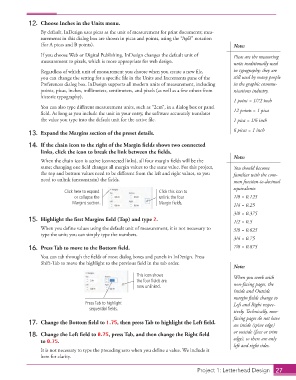
                  14.  If the chain icon to the right of the Margin fields shows two connected
                      links, click the icon to break the link between the fields.
                                                                                                Note:
                      When the chain icon is active (connected links), all four margin fields will be the
                      same; changing one field changes all margin values to the same value. For this project,   You should become
                      the top and bottom values need to be different from the left and right values, so you   familiar with the com-
                      need to unlink (unconstrain) the fields.                                  mon fraction-to-decimal
                                                                                                equivalents:
                               Click here to expand                Click this icon to
                                   or collapse the                 unlink the four              1/8 = 0.125
                                  Margins section.                 Margin fields.               1/4 = 0.25

                                                                                                3/8 = 0.375
                  15.  Highlight the first Margins field (Top) and type 2.                      1/2 = 0.5
                      When you define values using the default unit of measurement, it is not necessary to   5/8 = 0.625
                      type the unit; you can simply type the numbers.
                                                                                                3/4 = 0.75
                  16.  Press Tab to move to the Bottom field.                                   7/8 = 0.875
                      You can tab through the fields of most dialog boxes and panels in InDesign. Press
                      Shift-Tab to move the highlight to the previous field in the tab order.
                                                                                                Note:
                                                           This icon shows                      When you work with
                                                           the four fields are
                                                           now unlinked.                        non-facing pages, the
                                                                                                Inside and Outside
                                                                                                margin fields change to
                                       Press Tab to highlight                                   Left and Right respec-
                                         sequential fields.
                                                                                                tively. Technically, non-
                                                                                                facing pages do not have
                  17.  Change the Bottom field to 1.75, then press Tab to highlight the Left field.  an inside (spine edge)
                                                                                                or outside (face or trim
                  18.  Change the Left field to 0.75, press Tab, and then change the Right field
                      to 0.75.                                                                  edge), so there are only
                                                                                                left and right sides.
                      It is not necessary to type the preceding zero when you define a value. We include it
                      here for clarity.

                                                                                  Project 1: Letterhead Design  27

