


Page 24 - CC 2019 ID Look Inside
P. 24
The Control Panel in Depth

               The  Control panel combines many common formatting   means you can change the options available in the panel.
               options into a single, compact format. It is context-sensitive,   (It is also important to note that the options available in the
               which means different options are available depending on   Control panel might be limited by the active workspace and
               what is selected in the layout. It is also customizable, which   by the width of your monitor or Application frame.)
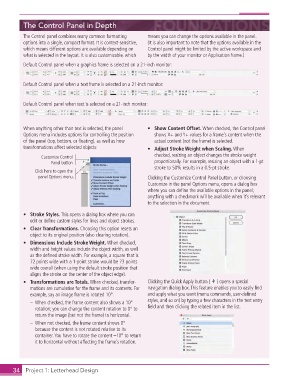
               Default Control panel when a graphics frame is selected on a 21-inch monitor:


               Default Control panel when a text frame is selected on a 21-inch monitor:


               Default Control panel when text is selected on a 21-inch monitor:


               When anything other than text is selected, the panel   •   Show Content Offset. When checked, the Control panel
               Options menu includes options for controlling the position   shows X+ and Y+ values for a frame’s content when the
               of the panel (top, bottom, or fl oating), as well as how   actual content (not the frame) is selected.
               transformations affect selected objects:        •   Adjust Stroke Weight when Scaling. When
                      Customize Control                          checked, resizing an object changes the stroke weight
                          Panel button                           proportionally. For example, resizing an object with a 1-pt
                                                                 stroke to 50% results in a 0.5-pt stroke.
                    Click here to open the
                     panel Options menu.                       Clicking the Customize Control Panel button, or choosing
                                                               Customize in the panel Options menu, opens a dialog box
                                                               where you can defi ne the available options in the panel;
                                                               anything with a checkmark will be available when it’s relevant
                                                               to the selection in the document.

               •   Stroke Styles. This opens a dialog box where you can
                  edit or defi ne custom styles for lines and object strokes.
               •   Clear Transformations. Choosing this option resets an
                  object to its original position (also clearing rotation).
               •   Dimensions Include Stroke Weight. When checked,
                  width and height values include the object width, as well
                  as the defi ned stroke width. For example, a square that is
                  72 points wide with a 1-point stroke would be 73 points
                  wide overall (when using the default stroke position that
                  aligns the stroke on the center of the object edge).
               •   Transformations are Totals. When checked, transfor-  Clicking the  Quick Apply button (  ) opens a special
                  mations are cumulative for the frame and its contents. For   navigation dialog box. This feature enables you to easily fi nd
                  example, say an image frame is rotated 10°.  and apply what you want (menu commands, user-defi ned
                  –   When checked, the frame content also shows a 10°   styles, and so on) by typing a few characters in the text entry
                    rotation; you can change the content rotation to 0° to   fi eld and then clicking the related item in the list.
                    return the image (but not the frame) to horizontal.
                  –   When not checked, the frame content shows 0°
                    because the content is not rotated relative to its
                    container. You have to rotate the content –10° to return
                    it to horizontal without affecting the frame’s rotation.


           34     Project 1: Letterhead Design

