


Page 25 - CC 2019 ID Look Inside
P. 25
2.  Choose View>Grids & Guides>Smart Guides to make sure this option is
                      toggled on. If the option is already checked, move the cursor away from
                      the menu and click to dismiss it.

                      Smart guides are a useful function of the
                      application, making it easy to create and precisely
                      align objects. Smart guides show the dimensions                             This option should
                      of an object when you create it, the position of                            be checked (active).
                      an object when you drag it, the edge and center
                      position of nearby objects and the distance between nearby similar objects.

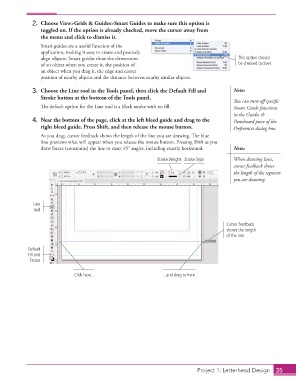
                   3.  Choose the Line tool in the Tools panel, then click the Default Fill and   Note:
                      Stroke button at the bottom of the Tools panel.
                                                                                                You can turn off specific
                      The default option for the Line tool is a black stroke with no fill.      Smart Guide functions
                                                                                                in the Guides &
                   4.  Near the bottom of the page, click at the left bleed guide and drag to the   Pasteboard pane of the
                      right bleed guide. Press Shift, and then release the mouse button.        Preferences dialog box.
                      As you drag, cursor feedback shows the length of the line you are drawing. The blue
                      line previews what will appear when you release the mouse button. Pressing Shift as you
                      draw forces (constrains) the line to exact 45° angles, including exactly horizontal.   Note:

                                                                   Stroke Weight Stroke Style   When drawing lines,
                                                                                                cursor feedback shows
                                                                                                the length of the segment
                                                                                                you are drawing.


                   Line
                   tool

                                                                                             Cursor feedback
                                                                                             shows the length
                                                                                             of the line.

                 Default
                 Fill and
                  Stroke

                                   Click here...                     ...and drag to here.


                                                                                  Project 1: Letterhead Design  35

