


Page 20 - CC 2019 ID Look Inside
P. 20
Understanding Document Presets

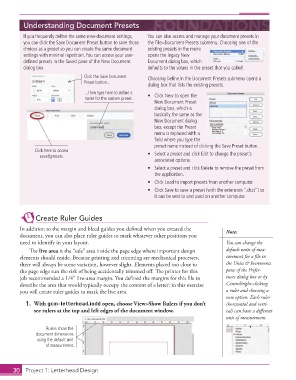
               If you frequently defi ne the same new-document settings,   You can also access and manage your document  presets in
               you can click the Save Document Preset button to save those   the File> Document Presets submenu. Choosing one of the
               choices as a preset so you can create the same document   existing presets in the menu
               settings with minimal repetition. You can access your user-  opens the legacy New
               defi ned presets in the Saved pane of the New Document   Document dialog box, which
               dialog box.                                     defaults to the values in the preset that you called.
                                       Click the Save Document   Choosing Defi ne in the Document Presets submenu opens a
                                       Preset button...
                                                               dialog box that lists the existing presets.
                                       ...then type here to define a
                                       name for the custom preset.  •  Click New to open the
                                                                  New Document Preset
                                                                  dialog box, which is
                                                                  basically the same as the
                                                                  New Document dialog
                                                                  box, except the Preset
                                                                  menu is replaced with a
                                                                  fi eld where you type the
                                                                  preset name instead of clicking the Save Preset button.
                    Click here to access
                      saved presets.                           •  Select a preset and click Edit to change the preset’s
                                                                  associated options.
                                                               •  Select a preset and click Delete to remove the preset from
                                                                  the application.
                                                               •  Click Load to import presets from another computer.
                                                               •  Click Save to save a preset (with the extension “.dcst”) so
                                                                  it can be sent to and used on another computer.


                    Create Ruler Guides

              In addition to the margin and bleed guides you defi ned when you created the   Note:
              document, you can also place  ruler guides to mark whatever other positions you
              need to identify in your layout.                                               You can change the
                  Th  e  live area is the “safe” area inside the page edge where important design   default units of mea-
              elements should reside. Because printing and trimming are mechanical processes,   surement for a fi le in
              there will always be some variation, however slight. Elements placed too close to   the  Units & Increments
              the page edge run the risk of being accidentally trimmed off . Th  e printer for this   pane of the Prefer-
              job recommended a 1/4″ live-area margin. You defi ned the margins for this fi le to   ences dialog box or by
              describe the area that would typically occupy the content of a letter; in this exercise   Control/right-clicking
              you will create ruler guides to mark the live area.                            a ruler and choosing a
                                                                                             new option. Each ruler
               1. With gcm-letterhead.indd open, choose View> Show Rulers if you don’t       (horizontal and verti-
                   see  rulers at the top and left edges of the document window.             cal) can have a diff erent
                                                                                             unit of measurement.

                        Rulers show the
                    document dimensions
                     using the default unit
                        of measurement.


           30     Project 1: Letterhead Design

