


Page 38 - CC2018_ID_Look_Inside
P. 38
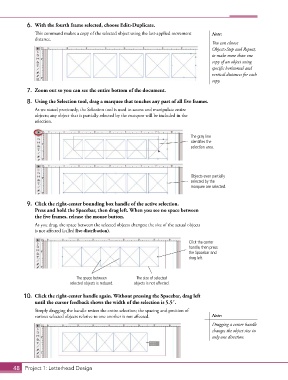
6.  With the fourth frame selected, choose Edit>Duplicate.
               This command makes a copy of the selected object using the last-applied movement   Note:
               distance.
                                                                                        You can choose
                                                                                        Object>Step and Repeat,
                                                                                        to make more than one
                                                                                        copy of an object using
                                                                                        specific horizontal and
                                                                                        vertical distances for each
                                                                                        copy.
            7.  Zoom out so you can see the entire bottom of the document.

            8.  Using the Selection tool, drag a marquee that touches any part of all five frames.

               As we stated previously, the Selection tool is used to access and manipulate entire
               objects; any object that is partially selected by the marquee will be included in the
               selection.


                                                                                The gray line
                                                                                identifies the
                                                                                selection area.


                                                                                Objects even partially
                                                                                selected by the
                                                                                marquee are selected.


            9.  Click the right-center bounding box handle of the active selection.
               Press and hold the Spacebar, then drag left. When you see no space between
               the five frames, release the mouse button.
               As you drag, the space between the selected objects changes; the size of the actual objects
               is not affected (called live distribution).

                                                                               Click the center
                                                                               handle, then press
                                                                               the Spacebar and
                                                                               drag left.


                                 The space between       The size of selected
                              selected objects is reduced.  objects is not affected.

           10.  Click the right-center handle again. Without pressing the Spacebar, drag left
               until the cursor feedback shows the width of the selection is 5.5″.
               Simply dragging the handle resizes the entire selection; the spacing and position of
               various selected objects relative to one another is not affected.        Note:
                                                                                        Dragging a center handle
                                                                                        changes the object size in
                                                                                        only one direction.


       48 Project 1: Letterhead Design

