


Page 36 - CC2018_ID_Look_Inside
P. 36
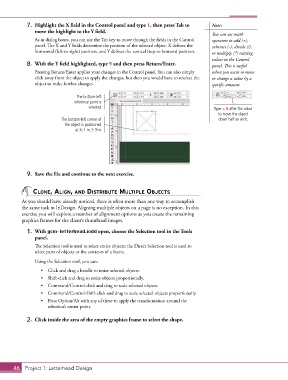
7.  Highlight the X field in the Control panel and type 1, then press Tab to   Note:
               move the highlight to the Y field.
                                                                                        You can use math
               As in dialog boxes, you can use the Tab key to move through the fields in the Control   operators to add (+),
               panel. The X and Y fields determine the position of the selected object. X defines the   subtract (-), divide (/),
               horizontal (left-to-right) position, and Y defines the vertical (top-to-bottom) position.  or multiply (*) existing
                                                                                        values in the Control
            8.  With the Y field highlighted, type 9 and then press Return/Enter.       panel. This is useful
               Pressing Return/Enter applies your changes in the Control panel. You can also simply   when you want to move
               click away from the object to apply the changes, but then you would have to reselect the   or change a value by a
               object to make further changes.                                          specific amount.

                                 The bottom-left
                                reference point is
                                      selected.                                          Type +.5 after the value
                                                                                           to move the object
                          The bottom-left corner of                                        down half an inch.
                            the object is positioned
                                at X: 1 in, Y: 9 in.


            9.  Save the file and continue to the next exercise.


               Clone, Align, And distribute multiple objeCts
          As you should have already noticed, there is often more than one way to accomplish
          the same task in InDesign. Aligning multiple objects on a page is no exception. In this
          exercise you will explore a number of alignment options as you create the remaining
          graphics frames for the client’s thumbnail images.

            1.  With gcm-letterhead.indd open, choose the Selection tool in the Tools
               panel.

               The Selection tool is used to select entire objects; the Direct Selection tool is used to
               select parts of objects or the contents of a frame.
               Using the Selection tool, you can:

                  •  Click and drag a handle to resize selected objects.
                  •  Shift-click and drag to resize objects proportionally.
                  •  Command/Control-click and drag to scale selected objects.
                  •  Command/Control-Shift-click and drag to scale selected objects proportionally.
                  •  Press Option/Alt with any of these to apply the transformation around the
                     selection’s center point.


            2.  Click inside the area of the empty graphics frame to select the shape.


       46 Project 1: Letterhead Design

