


Page 35 - CC2018_ID_Look_Inside
P. 35
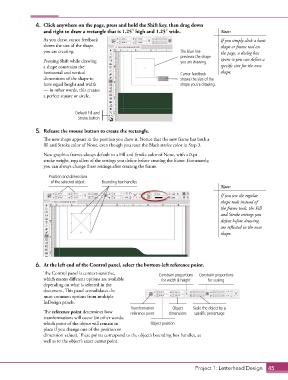
4.  Click anywhere on the page, press and hold the Shift key, then drag down
                   and right to draw a rectangle that is 1.25″ high and 1.25″ wide.         Note:

                   As you draw, cursor feedback                                             If you simply click a basic
                   shows the size of the shape                                              shape or frame tool on
                   you are creating.                                       The blue line    the page, a dialog box
                                                                           previews the shape
                   Pressing Shift while drawing                            you are drawing.  opens so you can define a
                   a shape constrains the                                                   specific size for the new
                   horizontal and vertical                                 Cursor feedback   shape.
                   dimensions of the shape to                              shows the size of the
                   have equal height and width                             shape you’re drawing.
                   — in other words, this creates
                   a perfect square or circle.


                                Default Fill and
                                 Stroke button

                5.  Release the mouse button to create the rectangle.
                   The new shape appears in the position you drew it. Notice that the new frame has both a
                   fill and Stroke color of None, even though you reset the Black stroke color in Step 3.
                   New graphics frames always default to a Fill and Stroke color of None, with a 0-pt
                   stroke weight, regardless of the settings you define before creating the frame. Fortunately,
                   you can always change these settings after creating the frame.

                     Position and dimensions
                      of the selected object.  Bounding box handles
                                                                                            Note:

                                                                                            If you use the regular
                                                                                            shape tools instead of
                                                                                            the frame tools, the Fill
                                                                                            and Stroke settings you
                                                                                            define before drawing
                                                                                            are reflected in the new
                                                                                            shape.


                6.  At the left end of the Control panel, select the bottom-left reference point.

                   The Control panel is context-sensitive,         Constrain proportions   Constrain proportions
                   which means different options are available      for width & height  for scaling
                   depending on what is selected in the
                   document. This panel consolidates the
                   most common options from multiple
                   InDesign panels.
                                                       Transformation   Object   Scale the object by a
                   The reference point determines how   reference point  dimensions  specific percentage
                   transformations will occur (in other words,
                   which point of the object will remain in    Object position
                   place if you change one of the position or
                   dimension values). These points correspond to the object’s bounding box handles, as
                   well as to the object’s exact center point.


                                                                                  Project 1: Letterhead Design  45

