


Page 23 - CC2018_ID_Look_Inside
P. 23
CreAte A simple line
              Although much drawing work is done in a dedicated illustration program such as
              Adobe Illustrator, you can use the drawing tools in InDesign to create vector artwork.
                 InDesign includes two tools for creating lines: the Line tool for creating straight
              lines and the Pen tool for creating curved lines called Bézier curves (although you can
              also create straight lines with the Pen tool). In this exercise, you create the most basic
              element possible: a straight line. You then add anchor points to the line to create a
              multi-segment path.

                1.  With gcm-letterhead.indd open, choose View>Grids & Guides>Smart
                   Guides to make sure this option is toggled on. If the option is already
                   checked, move the cursor away from the menu and click to dismiss it.
                   Smart guides are a useful function of the application, making it easy to create and
                   precisely align objects. Smart guides show the dimensions of an object when you create
                   it; the position of an object when you drag it; the edge and center position of nearby
                   objects; and the distance between nearby similar objects.


                                                               This option should           Note:
                                                               be checked (active).
                                                                                            You can turn off specific
                                                                                            Smart Guide functions in
                2.  Choose the Line tool in the Tools panel, then click the Default Fill and   the Guides & Pasteboard
                   Stroke button at the bottom of the Tools panel.                          pane of the Preferences
                   The default options for the Line tool are a black stroke with no fill.   dialog box.

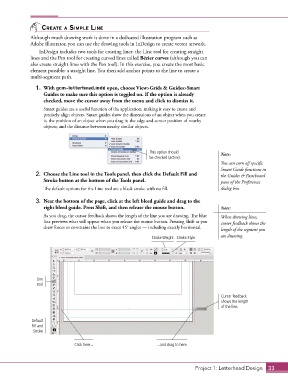
                3.  Near the bottom of the page, click at the left bleed guide and drag to the
                   right bleed guide. Press Shift, and then release the mouse button.       Note:
                   As you drag, the cursor feedback shows the length of the line you are drawing. The blue   When drawing lines,
                   line previews what will appear when you release the mouse button. Pressing Shift as you   cursor feedback shows the
                   draw forces or constrains the line to exact 45° angles — including exactly horizontal.
                                                                                            length of the segment you
                                                                Stroke Weight Stroke Style  are drawing.


                Line
                tool


                                                                                            Cursor feedback
                                                                                            shows the length
                                                                                            of the line.


              Default
              Fill and
               Stroke

                                Click here...                     ...and drag to here.


                                                                                  Project 1: Letterhead Design  33

