


Page 26 - CC2018_ID_Look_Inside
P. 26
8.  When the cursor is at the 4.5″ mark of the horizontal page ruler, click to
               add a point to the line.

               The visible center point of the selected line is a bit deceptive. This simply marks the
               center of the shape (a line, in this case); it is not an actual point on the line.

            9.  Move the cursor right to the 6″ mark and click to add another point.
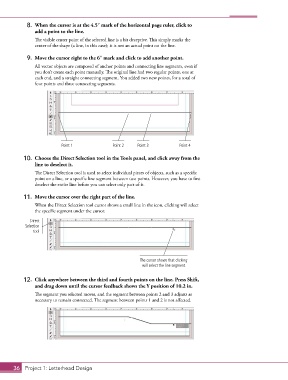
               All vector objects are composed of anchor points and connecting line segments, even if
               you don’t create each point manually. The original line had two regular points, one at
               each end, and a straight connecting segment. You added two new points, for a total of
               four points and three connecting segments.


                          Point 1               Point 2   Point 3          Point 4

           10.  Choose the Direct Selection tool in the Tools panel, and click away from the
               line to deselect it.
               The Direct Selection tool is used to select individual pieces of objects, such as a specific
               point on a line, or a specific line segment between two points. However, you have to first
               deselect the entire line before you can select only part of it.

           11.  Move the cursor over the right part of the line.
               When the Direct Selection tool cursor shows a small line in the icon, clicking will select
               the specific segment under the cursor.
              Direct
           Selection
               tool


                                                           The cursor shows that clicking
                                                            will select the line segment.

           12.  Click anywhere between the third and fourth points on the line. Press Shift,
               and drag down until the cursor feedback shows the Y position of 10.2 in.
               The segment you selected moves, and the segment between points 2 and 3 adjusts as
               necessary to remain connected. The segment between points 1 and 2 is not affected.


       36 Project 1: Letterhead Design

