


Page 20 - CC2018_ID_Look_Inside
P. 20
CreAte ruler guides
          In addition to the margin and bleed guides that you defined when you created the
          document, you can also place ruler guides to mark whatever other positions you need   Note:
          to identify in your layout.
                                                                                         Y values define vertical
              The live area is the “safe” area inside the page edge where important design   (top-to-bottom)
          elements should reside. Because printing and trimming are mechanical processes,   position; X values define
          there will always be some variation — however slight. Elements placed too close to   horizontal (left-to-right)
          the page edge run the risk of being accidentally trimmed off. The printer for this job   position.
          recommended a 1/4″ live-area margin. You defined the margins for this file to describe
          the area that would typically occupy the content of a letter; in this exercise you will
          create ruler guides to mark the live area.
                                                                                         Note:
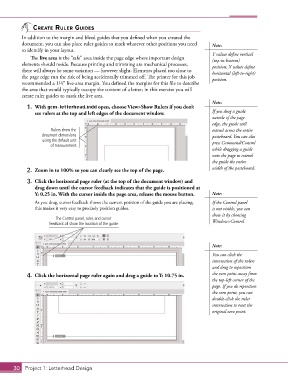
            1.  With gcm-letterhead.indd open, choose View>Show Rulers if you don’t
               see rulers at the top and left edges of the document window.              If you drag a guide
                                                                                         outside of the page
                                                                                         edge, the guide will
                      Rulers show the                                                    extend across the entire
                  document dimensions                                                    pasteboard. You can also
                   using the default unit                                                press Command/Control
                      of measurement.
                                                                                         while dragging a guide
                                                                                         onto the page to extend
                                                                                         the guide the entire
            2.  Zoom in to 100% so you can clearly see the top of the page.              width of the pasteboard.

            3.  Click the horizontal page ruler (at the top of the document window) and
               drag down until the cursor feedback indicates that the guide is positioned at
               Y: 0.25 in. With the cursor inside the page area, release the mouse button.  Note:
               As you drag, cursor feedback shows the current position of the guide you are placing;   If the Control panel
               this makes it very easy to precisely position guides.                     is not visible, you can
                                                                                         show it by choosing
                        The Control panel, ruler, and cursor
                     feedback all show the location of the guide.                        Window>Control.


                                                                                         Note:

                                                                                         You can click the
                                                                                         intersection of the rulers
                                                                                         and drag to reposition
            4.  Click the horizontal page ruler again and drag a guide to Y: 10.75 in.   the zero point away from
                                                                                         the top-left corner of the
                                                                                         page. If you do reposition
                                                                                         the zero point, you can
                                                                                         double-click the ruler
                                                                                         intersection to reset the
                                                                                         original zero point.


       30 Project 1: Letterhead Design

