


Page 28 - CC2018_ID_Look_Inside
P. 28
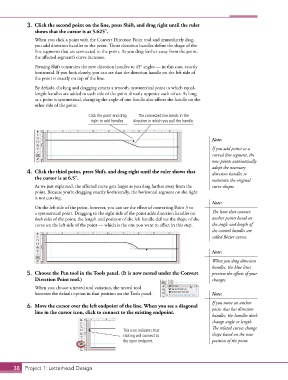
3.  Click the second point on the line, press Shift, and drag right until the ruler
               shows that the cursor is at 5.625″.

               When you click a point with the Convert Direction Point tool and immediately drag,
               you add direction handles to the point. Those direction handles define the shape of the
               line segments that are connected to the point. As you drag farther away from the point,
               the affected segment’s curve increases.
               Pressing Shift constrains the new direction handles to 45° angles — in this case, exactly
               horizontal. If you look closely, you can see that the direction handle on the left side of
               the point is exactly on top of the line.

               By default, clicking and dragging creates a smooth, symmetrical point in which equal-
               length handles are added to each side of the point directly opposite each other. As long
               as a point is symmetrical, changing the angle of one handle also affects the handle on the
               other side of the point.

                                      Click the point and drag   The connected line bends in the
                                       right to add handles.  direction in which you pull the handle.


                                                                                        Note:

                                                                                        If you add points to a
                                                                                        curved line segment, the
                                                                                        new points automatically
                                                                                        adopt the necessary
            4.  Click the third point, press Shift, and drag right until the ruler shows that   direction handles to
               the cursor is at 6.5″.                                                   maintain the original
               As we just explained, the affected curve gets larger as you drag farther away from the   curve shapes.
               point. Because you’re dragging exactly horizontally, the horizontal segment on the right
               is not curving.
                                                                                        Note:
               On the left side of the point, however, you can see the effect of converting Point 3 to
               a symmetrical point. Dragging to the right side of the point adds direction handles on   The lines that connect
               both sides of the point; the length and position of the left handle defines the shape of the   anchor points based on
               curve on the left side of the point — which is the one you want to affect in this step.  the angle and length of
                                                                                        the control handles are
                                                                                        called Bézier curves.


                                                                                        Note:
                                                                                        When you drag direction
                                                                                        handles, the blue lines
            5.  Choose the Pen tool in the Tools panel. (It is now nested under the Convert   preview the effects of your
               Direction Point tool.)                                                   changes.
               When you choose a nested tool variation, the nested tool
               becomes the default option in that position on the Tools panel.          Note:
                                                                                        If you move an anchor
            6.  Move the cursor over the left endpoint of the line. When you see a diagonal   point that has direction
               line in the cursor icon, click to connect to the existing endpoint.
                                                                                        handles, the handles don’t
                                                                                        change angle or length.
                                                                                        The related curves change
                                                    This icon indicates that
                                                    clicking will connect to            shape based on the new
                                                    the open endpoint.                  position of the point.


       38 Project 1: Letterhead Design

