


Page 44 - CS6_DW_Look_Inside
P. 44
define remote ConneCtion info for the site
          For Dreamweaver to manage file uploading, you first have to define the hosting server
          connection settings as part of the site setup information.

            1.  With the Kinetic site open in the Dreamweaver Files panel, open the
               Directory menu and click the Kinetic site name to open the Site Setup
               dialog box for that site.

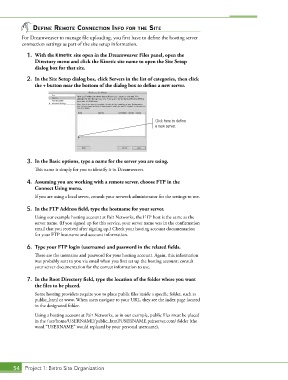
            2.  In the Site Setup dialog box, click Servers in the list of categories, then click
               the + button near the bottom of the dialog box to define a new server.


                                                                 Click here to define
                                                                 a new server.


            3.  In the Basic options, type a name for the server you are using.
               This name is simply for you to identify it in Dreamweaver.

            4.  Assuming you are working with a remote server, choose FTP in the
               Connect Using menu.
               If you are using a local server, consult your network administrator for the settings to use.

            5.  In the FTP Address field, type the hostname for your server.
               Using our example hosting account at Pair Networks, the FTP host is the same as the
               server name. (If you signed up for this service, your server name was in the confirmation
               email that you received after signing up.) Check your hosting account documentation
               for your FTP hostname and account information.

            6.  Type your FTP login (username) and password in the related fields.
               These are the username and password for your hosting account. Again, this information
               was probably sent to you via email when you first set up the hosting account; consult
               your server documentation for the correct information to use.

            7.  In the Root Directory field, type the location of the folder where you want
               the files to be placed.
               Some hosting providers require you to place public files inside a specific folder, such as
               public_html or www. When users navigate to your URL, they see the index page located
               in the designated folder.
               Using a hosting account at Pair Networks, as in our example, public files must be placed
               in the /usr/home/USERNAME/public_html/USERNAME.pairserver.com/ folder (the
               word “USERNAME” would replaced by your personal username),


       54 Project 1: Bistro Site Organization

