


Page 46 - CS6_DW_Look_Inside
P. 46
uPloAd files to A remote site
          Dreamweaver’s FTP functionality makes it easy to put files into the remote site folder
          (defined in the Site Setup dialog box). You can even synchronize all files on the remote
          and local sites — which is useful when you are ready to publish the site for public
          Internet access.

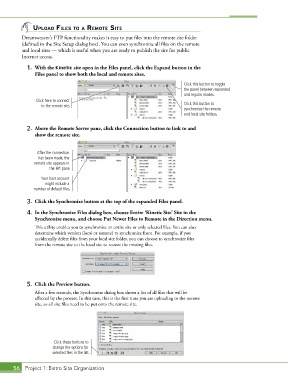
            1.  With the Kinetic site open in the Files panel, click the Expand button in the
               Files panel to show both the local and remote sites.

                                                                             Click this button to toggle
                                                                             the panel between expanded
                                                                             and regular modes.
                Click here to connect
                  to the remote site.                                        Click this button to
                                                                             synchronize the remote
                                                                             and local site folders.

            2.  Above the Remote Server pane, click the Connection button to link to and
               show the remote site.


                After the connection
                 has been made, the
               remote site appears in
                     the left pane.
                  Your host account
                    might include a
               number of default files.

            3.  Click the Synchronize button at the top of the expanded Files panel.

            4.  In the Synchronize Files dialog box, choose Entire ‘Kinetic Site’ Site in the
               Synchronize menu, and choose Put Newer Files to Remote in the Direction menu.
               This utility enables you to synchronize an entire site or only selected files. You can also
               determine which version (local or remote) to synchronize from. For example, if you
               accidentally delete files from your local site folder, you can choose to synchronize files
               from the remote site to the local site to restore the missing files.


            5.  Click the Preview button.
               After a few seconds, the Synchronize dialog box shows a list of all files that will be
               affected by the process. In this case, this is the first time you are uploading to the remote
               site, so all site files need to be put onto the remote site.


                       Click these buttons to
                       change the options for
                       selected files in the list.


       56 Project 1: Bistro Site Organization

