


Page 39 - CS6_DW_Look_Inside
P. 39
1.  With the Kinetic site open in the Files panel, open index.html.
                2.  Make sure the Document toolbar is showing (View>Toolbars>Document).

                3.  Click the Split button in the Document toolbar to show both the Code and
                   Design views at one time.

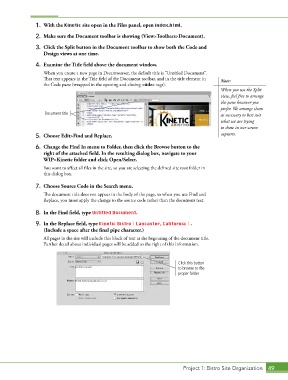
                4.  Examine the Title field above the document window.
                   When you create a new page in Dreamweaver, the default title is “Untitled Document”.
                   That text appears in the Title field of the Document toolbar, and in the title element in   Note:
                   the Code pane (wrapped in the opening and closing <title> tags).
                                                                                            When you use the Split
                                                                                            view, feel free to arrange
                                                                                            the pane however you
                                                                                            prefer. We arrange them
                   Document title                                                           as necessary to best suit
                                                                                            what we are trying
                                                                                            to show in our screen
                5.  Choose Edit>Find and Replace.                                           captures.

                6.  Change the Find In menu to Folder, then click the Browse button to the
                   right of the attached field. In the resulting dialog box, navigate to your
                   WIP>Kinetic folder and click Open/Select.
                   You want to affect all files in the site, so you are selecting the defined site root folder in
                   this dialog box.

                7.  Choose Source Code in the Search menu.
                   The document title does not appear in the body of the page, so when you use Find and
                   Replace, you must apply the change to the source code rather than the document text.

                8.  In the Find field, type Untitled Document.

                9.  In the Replace field, type Kinetic Bistro | Lancaster, California | .
                   (Include a space after the final pipe character.)

                   All pages in the site will include this block of text at the beginning of the document title.
                   Further detail about individual pages will be added to the right of this information.


                                                                           Click this button
                                                                           to browse to the
                                                                           proper folder.


                                                                             Project 1: Bistro Site Organization  49

