


Page 19 - CS6_DW_Look_Inside
P. 19
PlAn folder orgAnizAtion

              When all files are dumped into the main site folder, it can be challenging to manage
              your work. A well-organized site is an easy-to-manage site. Ideally, organization occurs
              before the site is constructed, but Dreamweaver makes it easy to reorganize files and
              folders at any point in the process.
                 There are no absolute rules to follow for organizing files and folders — other than
              the general principle of keeping related components together so you know where to
              find certain files when you need them.

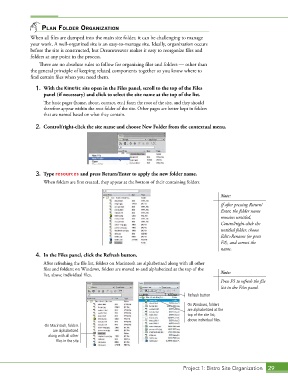
                1.  With the Kinetic site open in the Files panel, scroll to the top of the Files
                   panel (if necessary) and click to select the site name at the top of the list.
                   The basic pages (home, about, contact, etc.) form the root of the site, and they should
                   therefore appear within the root folder of the site. Other pages are better kept in folders
                   that are named based on what they contain.

                2.  Control/right-click the site name and choose New Folder from the contextual menu.


                3.  Type resources and press Return/Enter to apply the new folder name.
                   When folders are first created, they appear at the bottom of their containing folders.


                                                                                            Note:
                                                                                            If after pressing Return/
                                                                                            Enter, the folder name
                                                                                            remains untitled,
                                                                                            Control/right-click the
                                                                                            untitled folder, choose
                                                                                            Edit>Rename (or press
                                                                                            F2), and correct the
                                                                                            name.
                4.  In the Files panel, click the Refresh button.
                   After refreshing the file list, folders on Macintosh are alphabetized along with all other
                   files and folders; on Windows, folders are moved to and alphabetized at the top of the
                   list, above individual files.                                            Note:
                                                                                            Press F5 to refresh the file
                                                                                            list in the Files panel.
                                                                              Refresh button

                                                                              On Windows, folders
                                                                              are alphabetized at the
                                                                              top of the site list,
                                                                              above individual files.
                   On Macintosh, folders
                       are alphabetized
                     along with all other
                        files in the site.


                                                                             Project 1: Bistro Site Organization  29

