


Page 66 - CC2017_WD_Look_Inside
P. 66
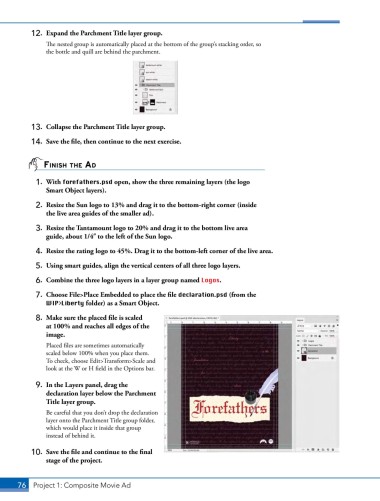
12. Expand the Parchment Title layer group.
The nested group is automatically placed at the bottom of the group’s stacking order, so
the bottle and quill are behind the parchment.
13. Collapse the Parchment Title layer group.
14. Save the file, then continue to the next exercise.
finish the Ad
1. With forefathers.psd open, show the three remaining layers (the logo
Smart Object layers).
2. Resize the Sun logo to 13% and drag it to the bottom-right corner (inside
the live area guides of the smaller ad).
3. Resize the Tantamount logo to 20% and drag it to the bottom live area
guide, about 1/4 to the left of the Sun logo.
4. Resize the rating logo to 45%. Drag it to the bottom-left corner of the live area.
5. Using smart guides, align the vertical centers of all three logo layers.
6. Combine the three logo layers in a layer group named Logos.
7. Choose File>Place Embedded to place the file declaration.psd (from the
WIP>Liberty folder) as a Smart Object.
8. Make sure the placed file is scaled
at 100% and reaches all edges of the
image.
Placed files are sometimes automatically
scaled below 100% when you place them.
To check, choose Edit>Transform>Scale and
look at the W or H field in the Options bar.
9. In the Layers panel, drag the
declaration layer below the Parchment
Title layer group.
Be careful that you don’t drop the declaration
layer onto the Parchment Title group folder,
which would place it inside that group
instead of behind it.
10. Save the file and continue to the final
stage of the project.
76 Project 1: Composite Movie Ad

